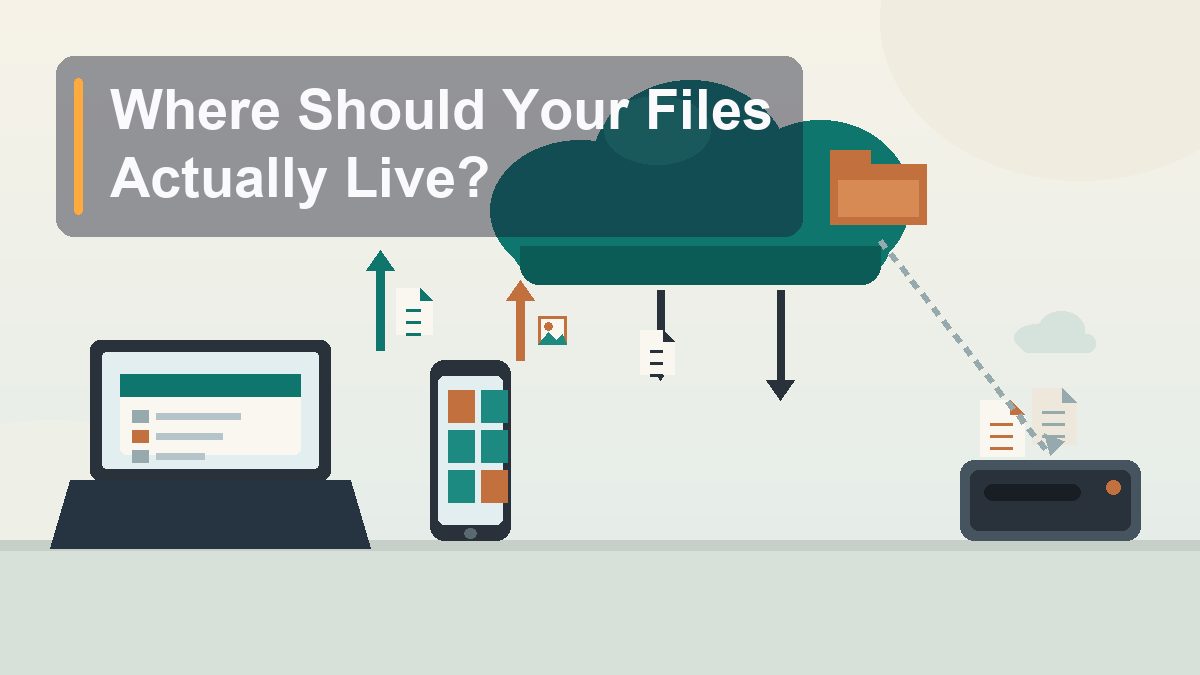
Where Should Your Files Actually Live? A Cloud Storage Field Guide
Somewhere between your laptop’s desktop, your phone’s photo library, and a folder named “final_v2_REAL,” your files developed a housing crisis. Here’s how local storage, cloud storage, and sync actually differ — and how to assign every file an address it can keep.
Ask someone where an important document lives and you’ll usually get one of three answers: “on my computer,” “in the cloud,” or a long pause followed by “both, I think?” That pause is the tell. Most of us never decided where our files should live — the decision was made for us, by whichever sync client installed itself first and whichever free tier filled up last. The result is a digital life scattered across a laptop drive, two cloud accounts, a phone, and a USB stick from a conference in 2019. None of this is your fault: the industry deliberately blurs the words “storage,” “sync,” and “backup” until they sound interchangeable, and they are very much not interchangeable. One of them protects you from disaster. One of them broadcasts your disasters to every device you own, instantly. This guide sorts out which is which, compares the four services worth considering, and gives every category of file you own a permanent, sensible home.
Storage, Sync, and Backup Are Three Different Animals
The vocabulary lesson that prevents the disaster
Everything confusing about cloud storage comes from treating three distinct ideas as one. Separate them and the rest of this article is just logistics.
Local storage means the file exists on your device and nowhere else. It’s fast, it works offline, it’s private by default — and it dies with the device. A laptop stolen from a coffee shop in Denver takes every locally-stored file with it, permanently, unless a copy exists somewhere else.
Cloud storage means the file exists on a company’s server and your device fetches it when needed. The file survives your laptop’s demise, you can reach it from any browser, and it doesn’t consume local disk space until you open it. The trade-offs: you need an internet connection, and you’re renting space on someone else’s computer under their terms.
Sync is the one everyone misunderstands. Sync keeps two or more copies of a file identical across devices — change it on your laptop, and the change appears on your phone seconds later. That’s genuinely wonderful for files you use everywhere. But sync is a mirror, not a vault. Delete the file on your laptop — by accident, by a buggy app, by a ransomware program — and sync helpfully deletes it everywhere else too, with the same cheerful efficiency. This is why the sentence “sync is not backup” deserves to be taped to every monitor in North America. A backup is a copy you can roll back to a previous state. A sync folder is a live mirror of your current state, including the state of “oops, gone.”
The good news hiding in that warning: every major service now keeps deleted files and old versions for around 30 days, which turns sync-with-version-history into a decent half-backup. A half-backup is still not a backup — but it’s far better than the mirror alone, and it will rescue you more often than anything else in this article.
The Big Four, Compared Honestly
iCloud, Google Drive, OneDrive, and Dropbox — the real strengths of each
Dozens of cloud storage services exist, but four of them have the integration, reliability track record, and staying power to trust with a decade of your files. Each has a personality, and each has one scenario where it’s clearly the right answer.
iCloud Drive is the obvious choice for an all-Apple household, and a frustrating one for everyone else. The free tier is a stingy 5 GB — shared with your device backups and photos, so it’s gone before you start. The paid iCloud+ tiers are fairly priced (50 GB for $0.99/month, 200 GB for $2.99, 2 TB for $9.99) and the integration is invisible in the good way: Desktop and Documents sync, iPhone backups, and photo libraries all just happen. The weaknesses are real, though: the Windows client is merely okay, there’s no Android client at all, and sharing features lag the competition. Apple’s privacy posture — including end-to-end encryption for most data if you enable Advanced Data Protection in Settings > your name > iCloud — is the best of the four, and Apple’s iCloud support pages document exactly what’s covered.
Google Drive is the collaboration champion. Fifteen gigabytes free — though that pool is shared with Gmail and Google Photos, a fact that ambushes people when their email stops working because a decade of photo attachments ate the quota. Paid Google One plans start at 100 GB for $1.99/month. Drive’s genuine superpower is that Google Docs, Sheets, and Slides live inside it, making shared editing the smoothest experience of the four; the Drive for desktop app (File Stream) also handles on-demand files well on both Mac and Windows. The trade-off is philosophical: Google’s business is data, and while Drive files aren’t scanned for ads anymore, you’re still deepest inside the ecosystem of the company that knows the most about you. Google’s Drive help center covers the current plans and limits.
OneDrive is the default answer for Windows people, and it’s earned that position. Five GB free, 100 GB for $1.99/month as a standalone plan — but the real story is Microsoft 365: a Personal subscription (about $99.99/year) bundles 1 TB of OneDrive with the full Office apps, which is the best per-gigabyte deal in consumer cloud storage if you’d use Office anyway. Its Files On-Demand feature is the most polished space-saving implementation anywhere: every file appears in File Explorer, takes zero disk space until opened, and you can right-click anything to “Always keep on this device.” Mac support is solid now, and the Personal Vault adds a second authentication layer for sensitive documents. Details live on Microsoft’s OneDrive support site.
Dropbox is the pioneer, and it still has the best raw sync engine — the fastest, most reliable at handling conflicts between devices, the most platform-neutral (Mac, Windows, Linux, everything). Its free tier, though, is a museum piece: 2 GB, unchanged since roughly the Obama administration. Paid plans start at 2 TB for about $9.99/month billed annually, which is a lot of storage and a lot of money if you only need 100 GB. Dropbox makes sense for people who live across mixed ecosystems or share large files professionally; it’s hard to justify for a casual user whom the other three would serve for free or nearly so. Dropbox’s help center has the current plan details.
| Service | Free tier | Cheapest useful paid tier | Best for | Watch out for |
|---|---|---|---|---|
| iCloud Drive | 5 GB (shared with backups) | 50 GB / $0.99 per month | All-Apple households | Useless on Android; weak sharing |
| Google Drive | 15 GB (shared with Gmail) | 100 GB / $1.99 per month | Collaboration, Android users | Free quota evaporates via email |
| OneDrive | 5 GB | 100 GB / $1.99 per month | Windows and Office users | Best value requires Microsoft 365 |
| Dropbox | 2 GB | 2 TB / ~$9.99 per month | Mixed platforms, pro sharing | No small paid tier; pricey |
The Pick-One-Ecosystem Rule
Two sync clients is one too many
Here is the single most opinionated sentence in this article: choose exactly one consumer cloud, put your files in it, and ignore the rest. The people with the messiest digital lives are never the ones with no cloud — they’re the ones with three. Dropbox has the tax documents from 2019, Google Drive has the shared spreadsheets, iCloud has whatever the Mac did on its own, and nobody can find the lease renewal because nobody remembers which service was feeling lucky that day.
Running multiple sync clients also has a boring technical cost: each one sits in memory, watches your folders, scans for changes, and occasionally decides 3 a.m. is the moment to re-index 40 GB. One client is a utility; three are a small committee holding meetings inside your laptop.
The selection logic takes one minute. All Apple devices? iCloud, and pay the dollar for 50 GB so your backups fit. Windows laptop and an Android phone? OneDrive or Google Drive, depending on whether Office or Gmail matters more to you. Heavy Gmail and shared-document life? Google Drive. Mixed household, freelance file-sharing, a Linux machine in the mix? Dropbox earns its fee. A work account provided by an employer is the one legitimate exception — keep it, but keep it strictly separate, because the day you change jobs is the day that account and everything in it evaporates.
What Belongs in the Cloud — and What Belongs on a Shelf
Hot files sync, cold files sit on a drive
Cloud storage is rented by the month, forever. An external drive is bought once. That single economic fact should decide where most of your gigabytes live, and it points to a simple division: files you touch belong in the cloud; files you merely keep belong on a drive.
Cloud-worthy files: documents you’re actively working on, anything you want reachable from your phone, files you share or collaborate on, and your everyday Desktop and Documents folders. The test is frequency — if you’ve opened it this month, or you’d be annoyed you couldn’t pull it up from an airport, it’s a cloud file.
Drive-worthy files: photo and video archives from previous years, raw footage, finished client projects, old tax-year folders (the paperwork, not advice), disk images, and anything large you touch less than once a month. A 4 TB external drive costs roughly $90–$110 once; storing those same 4 TB in the cloud costs $10-plus a month indefinitely. For cold archives, the drive wins by a wide and permanent margin. It also keeps your cloud quota from filling with things that never needed to sync to your phone in the first place — nobody has ever urgently needed a 2018 vacation video from a hotel lobby.
One honest caveat about external drives: they fail, quietly and completely, usually at year four or five without a farewell tour. So the drive holding your archives should either be one of two copies, or hold things you’d survive losing. That principle gets its own section below.
The Desktop and Documents Trap
The feature that “eats” people’s files
Both Apple and Microsoft offer a feature that syncs your Desktop and Documents folders to the cloud automatically. It’s genuinely useful, and it’s also responsible for more “my files disappeared” panic than every actual data-loss event combined — because turning it on changes where files live, and turning it off doesn’t politely change them back.
On a Mac, the switch is at System Settings > your name > iCloud > iCloud Drive > Desktop & Documents Folders. Enable it and those two folders quietly relocate into iCloud Drive. Enable “Optimize Mac Storage” as well, and macOS starts offloading files you haven’t opened recently — the file still appears in Finder, but it’s a placeholder until you double-click and it downloads. This is wonderful until you’re on a plane, or presenting a pitch deck on conference-room Wi-Fi, watching a spinner where your slides used to be.
The trap springs when people turn the feature off. macOS does not move your files back to a local Desktop — it leaves them in iCloud Drive and shows you an empty Desktop with a helpful note explaining where everything went, which everyone reads as “deleted.” The files are fine, sitting in iCloud Drive > Desktop in Finder, but you have to drag them back yourself. OneDrive’s equivalent (Known Folder Backup, managed from the OneDrive cloud icon in the system tray > Settings > Sync and backup) behaves the same way on Windows: stop the backup and your files stay in the OneDrive folder path until you move them.
The rules for surviving this feature: decide deliberately whether you want it (for most people with one computer and a decent internet connection, yes, it’s worth it); leave “Optimize” storage off unless your drive is cramped; and if you ever disable it, budget ten calm minutes to relocate your folders, knowing in advance that nothing was deleted — it just moved without leaving a forwarding address on the door.
Sharing Files Without Regretting It
Links, permissions, and the meaning of “anyone”
Sharing is where cloud storage earns its rent — and where it creates its own category of quiet disasters. Every service offers the same basic controls, and the differences between them are exactly the differences that matter.
View versus edit. Every share link has a permission level. “Can view” means the recipient can look and download but not modify; “Can edit” means they can also delete, move, and — in a shared folder — wreck things for everyone. Default to view-only and grant edit deliberately. The number of family photo archives accidentally pruned by a well-meaning uncle with edit access is not small.
Named people versus anyone with the link. This is the big one. A link set to “anyone with the link can view” is functionally public: it can be forwarded, posted, indexed, and opened by strangers, and you’ll never know. For anything sensitive — a lease, an ID scan, financial paperwork — share with named email addresses so the service requires a sign-in. It adds thirty seconds for the recipient and removes an entire class of exposure. Dropbox and OneDrive paid tiers add password-protected and expiring links, which are worth using for anything you’d describe as “documents” in a serious tone of voice.
Revocation. Links don’t expire on their own in most free tiers. Once or twice a year, open your service’s “Shared” view (every one of the big four has it) and unshare anything whose moment has passed. The folder of house photos you shared with a contractor in 2024 does not need to remain open in 2026.
Sync Is Not Backup — So Do This
The 3-2-1 rule in ninety seconds
We’ve covered backups properly elsewhere, so this is the short version, because it clicks into place once you understand sync. The durable rule is 3-2-1: keep three copies of anything important, on two different kinds of storage, with one copy somewhere off-site. Your cloud sync folder can serve as the off-site copy for active files. Your external drive can serve as the second medium for archives. What neither can do alone is protect you from yourself — from deletions, overwrites, and corruption that sync faithfully replicates everywhere.
That last gap is closed by versioning: Time Machine on a Mac (System Settings > General > Time Machine) or File History on Windows keeps hourly snapshots of your local files, so “the version from before I ruined it” always exists. Cloud sync for reach, an external drive for archives, versioned backup for mistakes. Three layers, each covering the others’ blind spot, none of them expensive, and — set up once — none of them requiring ongoing thought. Which is the correct amount of thought to spend on file storage: once, properly.
When You Delete Something You Shouldn’t Have
You have about thirty days — move calmly and quickly
It will happen eventually: the wrong folder selected, the wrong key pressed, the sync client faithfully propagating your error to every device before you’ve finished saying “no, wait.” Here’s the recovery order, and it works because of those retention windows mentioned earlier.
First, check the obvious bins. The local Trash or Recycle Bin first, then the service’s web interface — and check the web version even if the local bin is empty, because sync deletions often skip it. iCloud: go to iCloud.com, sign in, and use Data Recovery (or Recently Deleted in the Files and Photos apps). Google Drive: the Trash folder at drive.google.com, holding items for 30 days. OneDrive: the Recycle bin at onedrive.com, 30 days for personal accounts — and for work or school accounts, a second-stage recycle bin extends the window further. Dropbox: the Deleted files page, 30 days on standard plans, longer on professional tiers.
Overwritten rather than deleted? Use version history. Right-click the file — in OneDrive, Dropbox, or Google Drive on the web — and choose Version history. Every service keeps prior versions for roughly 30 days, and restoring one takes seconds. This feature is criminally underused: it undoes bad edits, botched saves, and most ransomware encryption, which to the cloud just looks like a very busy afternoon of edits you can roll back.
If all of that fails, contact the service’s support quickly — Google and Apple can sometimes recover purged items days after the window closes, though treat this as a lottery ticket, not a plan. And let the near-miss teach the lesson this whole article has been circling: the file you recovered from a trash folder was never backed up, just briefly not-deleted. The goal is a setup where recovery is boring — because the copy was always there, in the right place, waiting.
This article is educational and reflects general best practices for consumer cloud storage. Prices and free-tier sizes are current as of August 2026 and change; confirm on the vendor’s site before subscribing. Sources referenced include Apple’s iCloud support, Google Drive Help, Microsoft OneDrive support, and Dropbox Help. No affiliate links or sponsored content. External links verified live at publication, August 2026.