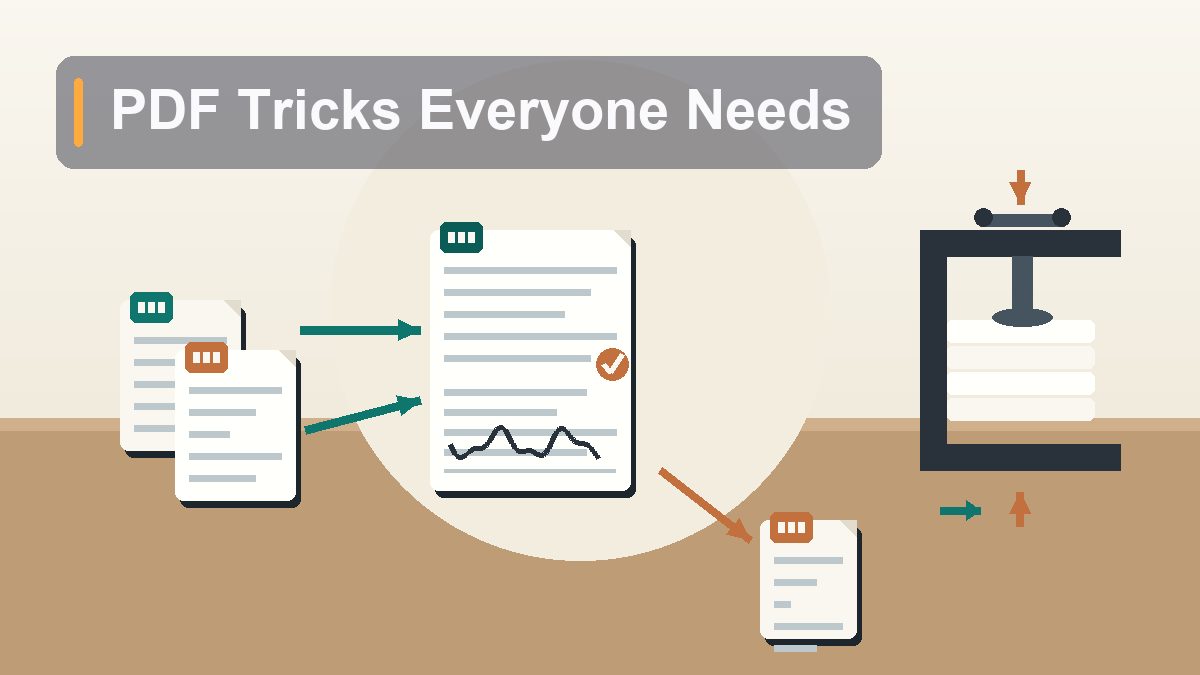
Everyday PDF Tricks: Merge, Split, Compress, Sign
The PDF is the internet’s filing cabinet — leases, tax forms, boarding passes, scanned recipes — and at some point everyone needs to staple two together, rip one page out, shrink one for email, or sign one without owning a printer. Here’s how to do all of it with tools you already have, and when the free online tools are actually safe to use.
Last month my neighbor knocked on my door holding her laptop like it was a casserole. She needed to sign a lease renewal, attach three months of bank statements, and email the whole thing as “one PDF, under 10 megabytes, by Friday.” She had four separate files, a scanner app photo of a signature she’d made in 2019, and no idea where to start. Twenty minutes later it was done — no software purchased, no printer involved, no account created on any website. The whole job used apps that were already on her Mac, plus one free browser tab for the compression. The PDF format has been around since 1993 and it shows: it’s stubborn, it’s everywhere, and nobody ever sits you down and teaches you the basic moves. So here they are — merging, splitting, compressing, signing, rotating, protecting, and making scanned documents searchable — with the built-in tools first and the honest caveats about the free online ones.
Merge: Stapling PDFs Together
Two files in, one file out — the most common PDF chore there is
On a Mac, Preview does this natively, and most people have no idea. Open the first PDF in Preview, then go to View > Thumbnails so you see the page strip down the left side. Now drag the second PDF file from Finder straight into that thumbnail strip — drop it wherever you want its pages to land, top, middle, or bottom. That’s it. Save with File > Export as PDF (or just close and let it save, though exporting to a new file keeps your originals untouched, which is a habit worth having). You can drag in a third, fourth, tenth file the same way. The thumbnail sidebar is also where you reorder pages by dragging them around, so merging and rearranging happen in the same place.
On Windows, there’s no built-in merger — this is the one gap in Microsoft’s toolbox. Your best free options: PDF24 Creator, a genuinely free, no-nonsense Windows app that’s been around for years and merges offline on your own machine; or the browser-based tools like iLovePDF, Smallpdf, or Adobe’s own free online merge tool, all of which do the job in about ten seconds. If you’re already paying for Adobe Acrobat, the Combine Files tool is excellent, but paying for Acrobat just to merge PDFs is like buying a pickup truck to carry one grocery bag.
One merge tip that saves real frustration: check page orientation before you combine. If one file is portrait and another is landscape (common when you mix a scanned form with a spreadsheet export), rotate the odd pages first — every tool mentioned here can rotate, and it’s much easier to fix in the source file than after the merge.
Split: Extracting Just the Pages You Need
The 40-page document where you need pages 12 through 14
The mirror image of merging, and nearly as common: someone sends you a giant combined PDF — a whole board packet, a year’s statements, a 200-page manual — and you need exactly three pages of it.
On a Mac, open the PDF in Preview, show the thumbnail sidebar, and click the pages you want (hold Command to pick several, or Shift to grab a range). Then drag those selected thumbnails straight onto your desktop — Preview instantly creates a new PDF containing just those pages. It feels like a magic trick the first time. Alternatively, use File > Print, set the page range, and choose “Save as PDF” from the PDF dropdown in the print dialog — clunkier, but it works from almost any app that can print, which is a useful escape hatch.
On Windows, the print-dialog trick is your built-in option: open the PDF in Edge (which handles PDFs surprisingly well), hit Ctrl+P, set the printer to Microsoft Print to PDF, enter your page range, and print. You get a new PDF of just those pages. For heavy-duty splitting — “break this 300-page file into single pages” or “split every 10 pages” — PDF24 Creator or any of the online tools have dedicated split modes that do it in one pass.
Compress: Shrinking a PDF for Email
When the attachment bounces back with “message too large”
Most email systems cap attachments around 20–25 MB, and many corporate or government portals are stingier — 10 MB is a common ceiling, which is exactly where my neighbor’s lease portal drew the line. A PDF blows past that for one of two reasons: it’s full of scanned pages (each scan is really a photo, and photos are heavy), or it contains high-resolution images someone exported carelessly. A text-only PDF of fifty pages might be 400 KB. A ten-page scan of the same content can be 60 MB.
Built-in options first. On a Mac, open the PDF in Preview, choose File > Export, and in the Quartz Filter dropdown pick Reduce File Size. One click, often a 70–90% reduction. The catch: Apple’s built-in filter is aggressive, and on documents with fine print or detailed scans it can make text visibly fuzzy. Always open the result and zoom in before sending. If it’s too degraded, the better Mac route is the free ColorSync Utility (already on your machine), where you can build a custom reduction filter with gentler image settings — a ten-minute project, once, and then it’s in your Export menu forever.
On Windows and everywhere else, the online compressors are genuinely good at this — Smallpdf, iLovePDF, and Adobe’s free online compressor all let you pick a compression level and show you the result. For a lease or a boarding pass, use them without worry. For anything sensitive, read the privacy section below before you upload. And if compression still isn’t enough — some scans just won’t fit under a hard 5 MB portal limit — the pro move is to split the file and send it in two emails, or fall back to a cloud link instead of an attachment.
Fill and Sign: No Printer Required
The chore that sells printers, and shouldn’t
This is the big one — the task that makes normal humans buy a printer, print a form, sign it with a pen, scan it back in, and email a crooked photo of a piece of paper. Every step of that is avoidable.
Filling in form fields. Many PDFs are actual forms with clickable text fields — try clicking on a blank line and typing. Adobe Acrobat Reader (free, on Mac and Windows) is the reference app for this, and it also saves filled forms properly, which some browser PDF viewers don’t. If the PDF has no fields — it’s a flat scan — you can still type on it: in Mac Preview, click the Markup button (the pen tip icon) and use the Text tool to drop text boxes anywhere. In Acrobat Reader, use Fill & Sign. In Edge on Windows, the text tool is right in the toolbar.
Signing. On a Mac, Preview’s Markup toolbar has a Signature button. You can create a signature three ways: draw it on the trackpad (awkward but fine), hold a signed piece of paper up to the camera (surprisingly good), or sign with your finger on a nearby iPhone or iPad (the best result — it’s the same smooth signature Apple Pay receipts use). Once saved, the signature lives in Preview forever; two clicks drop it onto any document, and you can scale and drag it into place. On Windows, Acrobat Reader’s Fill & Sign lets you type your name in a script font, draw with the mouse, or insert an image of your signature. For most everyday purposes — leases, permission slips, expense forms — these drawn or typed signatures are routinely accepted. (For anything where the legal weight genuinely matters, services like DocuSign exist, but that’s a different league from signing a field-trip form.)
In the browser, tools like Smallpdf and iLovePDF offer fill-and-sign, and Google’s and Microsoft’s mobile apps can annotate PDFs too. Handy on a phone when someone texts you a form and needs it back in ten minutes.
Rotate and Reorder Pages
Fixing the sideways scan and the upside-down page 9
Scanners are optimistic machines: feed a page in slightly crooked or sideways and they’ll happily bake that orientation into the PDF forever. The fixes are quick once you know where they live.
In Mac Preview, select a page in the thumbnail sidebar and hit Command+L (rotate left) or Command+R (rotate right) — or use Tools > Rotate. Select multiple thumbnails at once to rotate a whole batch. Dragging thumbnails up and down the sidebar reorders pages; dragging one onto another can even build a new document. Save and done. In Adobe Acrobat Reader — note, the free Reader — rotation for viewing is easy (right-click > Rotate), but saving rotated or reordered pages requires paid Acrobat or another tool; this is the free version’s most annoying limitation. On Windows, the genuinely-free answer is again PDF24 Creator, which has a visual page organizer where you drag pages into order and rotate them with a click. The online tools all do this too, with nice drag-and-drop page grids that show every page as a thumbnail — honestly the friendliest interface for reordering a long document, provided the file is safe to upload.
Password-Protect a PDF
For the document you don’t want sitting open in someone’s inbox
Sometimes a PDF has to travel but shouldn’t be casually readable — tax documents going to an accountant, ID scans going to a landlord. A password at least means a forwarded email doesn’t expose the contents.
On a Mac: open the PDF in Preview, File > Export, check Encrypt, and set a password. The exported copy is locked; the original stays unlocked on your machine. On Windows, there’s no built-in encryption, but PDF24 Creator and the online tools offer it. Then the crucial step everyone forgets: send the password through a different channel — text it, don’t email it. A password sitting in the same inbox as the file it protects is a sticky note on a locked door.
One honest caveat: PDF passwords keep out casual snoops, not determined attackers. The encryption in modern PDFs (AES-256, used by Acrobat and Preview) is solid, but plenty of old or cheap tools apply weak or fake protection that free “PDF unlocker” sites strip in seconds. Treat a PDF password as a locked glovebox, not a bank vault: fine for keeping honest people honest, not where you put the crown jewels. For genuinely sensitive transfers, a proper encrypted channel — a secure portal, Signal, an encrypted zip — beats a passworded PDF.
OCR: Making Scanned Documents Searchable
The difference between a photo of a document and a document
A scan is a picture. It looks like a page of text, but to your computer it’s a photograph — you can’t search it, can’t copy a sentence out of it, can’t select a word. OCR (optical character recognition) fixes that by reading the image and layering invisible, selectable text on top of it. After OCR, Ctrl+F works, copy-paste works, and finding “the invoice from March” in a folder of scans takes seconds instead of an afternoon.
The free options have gotten remarkably good. Adobe’s free online OCR and the scan tools in the big PDF sites will OCR an uploaded file. On the phone side, this is increasingly automatic: the iPhone’s Live Text lets you select and copy text straight out of photos and many scans without any special app, and scanning a document with the Notes app or Files produces PDFs that recent iOS versions can search. Google Drive deserves special mention — upload an image-based PDF and open it with Google Docs, and Drive quietly OCRs the whole thing into editable text. It’s free, it’s already in most people’s accounts, and for turning a shoebox of old paper documents into searchable files, it’s the best deal going.
Expect imperfection: OCR accuracy on clean, typed documents is near-perfect, but handwriting, faded receipts, and coffee-stained forms still confuse it. For anything you’ll rely on — a contract you’re extracting numbers from — skim the OCR result against the original image.
The Privacy Question: What You Upload and Where It Goes
Free online tools are free because you’re the transaction — know when that’s fine
Every “merge PDF free” website works the same way: your file uploads to their server, gets processed, and downloads back to you. The reputable ones — iLovePDF, Smallpdf, Adobe — state that files are encrypted in transit and deleted from their servers within a couple of hours, and there’s no evidence the big names are reading your documents. But you’re still handing a copy of your file to a stranger’s computer, and the long tail of sketchy lookalike sites makes no promises at all.
So the rule is simple. Harmless documents — a recipe collection, a public manual, a boarding pass for a flight you’re about to take, the car’s warranty booklet — upload freely; the convenience is real. Sensitive documents — tax returns, bank statements, ID scans, medical paperwork, anything with your Social Security number — keep on your own machine: Preview’s export options, PDF24 Creator (which runs offline on Windows), or Acrobat installed locally all work without any upload. If you must use an online tool for something sensitive, at least stick to the major named brands, check the page actually is the brand you think it is (lookalike domains are a real scam pattern), and delete any account you created afterward. The minute it takes to do the job locally is cheaper than finding out where a random server kept your 1040.
The Everyday Cheat Sheet
Every job in this article, matched to the free tool that does it
| Job | Mac (built-in) | Windows (free) | Any platform (online) |
|---|---|---|---|
| Merge PDFs | Preview: drag files into the thumbnail sidebar | PDF24 Creator (offline) | iLovePDF / Smallpdf / Adobe online |
| Split / extract pages | Preview: select thumbnails, drag to desktop | Microsoft Print to PDF with a page range | Any of the above, split mode |
| Compress for email | Preview: Export + Reduce File Size filter | PDF24, or online tools | Online compressors with level choice |
| Fill & sign | Preview Markup: text boxes + saved signatures | Acrobat Reader Fill & Sign (free) | Browser fill-and-sign tools |
| Rotate / reorder | Preview: Cmd+L / Cmd+R, drag thumbnails | PDF24 page organizer | Online “organize pages” grids |
| Password-protect | Preview: Export > Encrypt | PDF24 (offline) | Online protect tools — sensitive files stay local |
| OCR / searchable scans | Live Text; Notes/Files scans | Google Drive > open with Google Docs | Adobe online OCR |
Learn these seven moves and the PDF stops being a format that happens to you and becomes one you actually control. The next time someone says “can you send that as one PDF, signed, under ten megs,” you’ll have it back to them before they’ve finished typing the follow-up email — no printer, no purchase, no panic.
This article reflects the feature sets of macOS Preview, Windows 11, Adobe Acrobat Reader, and the named online tools as of August 2026; menu names and free-tier limits shift over time. Online tools mentioned (iLovePDF, Smallpdf, Adobe Acrobat online, PDF24, Google Drive) are referenced for educational purposes; review each service’s current privacy policy before uploading documents. No affiliate links or sponsored content. Links verified live at publication, August 2026.