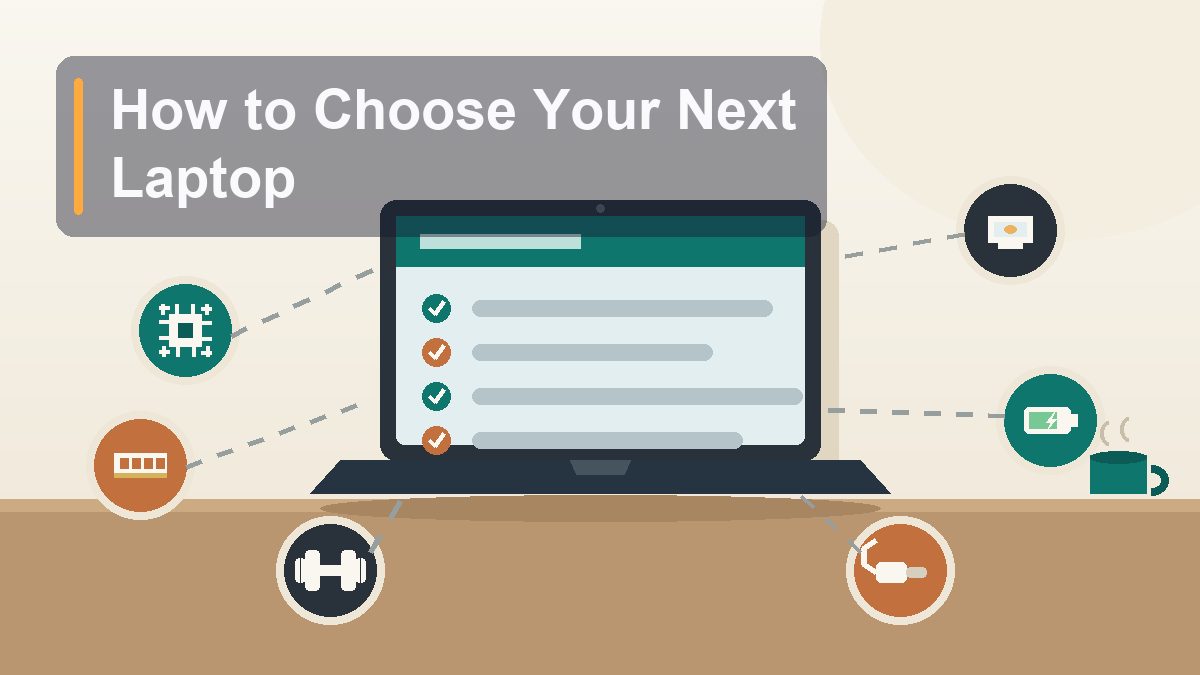
How to Choose Your Next Laptop (Specs Decoded)
The spec sheet is written to impress you, not inform you. Once you translate the CPU alphabet soup, the RAM numbers, and the screen marketing into plain English, the right laptop for your actual life is usually obvious — and often cheaper than the one the store is steering you toward.
Walk into any electronics store and the laptop aisle hits you with a wall of tiny printed cards: Intel Core Ultra 7, 16GB, 512GB SSD, 15.6″ FHD, priced at a number ending in 99. Or the AMD version, forty dollars cheaper, with what appears to be the same card except the words are different. Or the shiny one on the end cap with a 4K display and a battery claim of “up to 22 hours,” which is the laptop equivalent of “up to” on a shampoo bottle. Most people handle this the way they handle wine lists — pick the second-cheapest option and hope. This guide is the translation layer. It starts with the only question that actually matters (what will you do with it?), decodes the processor names without a single benchmark chart, sets the RAM and storage numbers for 2026, and explains why the screen spec nobody advertises matters more than the one on the biggest sticker. By the end you’ll be able to read one of those tiny cards in about eight seconds and know whether the machine is right for you or a very persuasive mismatch.
Start With the Job, Not the Laptop
Every spec decision flows from one question
Before any spec sheet, answer this honestly: what will this machine actually do on a normal Tuesday? Not the fantasy version where you learn video editing — the real one. Laptop buyers cluster into a few recognizable jobs, and each job has a very different correct answer.
Browsing, email, documents, streaming, video calls. This is the overwhelming majority of laptop use, and the industry is mildly embarrassed by how little machine it requires. Any current midrange processor, 8 to 16 GB of RAM, and a decent screen handles it without breaking a sweat. If this is you, your money is better spent on screen quality and keyboard comfort than on processor tiers.
Photo and video work. Editing photos in Lightroom or cutting video in DaVinci Resolve or Premiere is where specs start to matter genuinely. You want a strong processor (upper-midrange and up), 16 GB of RAM as a floor and 32 GB if you edit 4K video regularly, and a color-accurate screen — that last one is the spec hobbyists skip and regret.
Gaming. Games live and die by the graphics chip (GPU), not the CPU. A gaming laptop is a different category of machine entirely — heavier, louder, worse battery, with a dedicated NVIDIA or AMD graphics chip — and buying one by accident because “it was the most powerful on the shelf” means carrying a four-and-a-half-pound space heater to the coffee shop to answer email.
Travel and commuting. If the laptop lives in a bag, weight and battery stop being footnotes and become the whole review. Every pound matters at the airport, a dead battery at hour six of a travel day is a crisis, and a bright screen matters because airplanes and cafes are badly lit in the exact direction that turns glossy screens into mirrors.
Most people are a blend — mostly the first job with a dash of the others. That’s fine. Identify the dominant job, buy for it, and let the secondary jobs ride along. The failure mode to avoid is buying for the job you imagine rather than the one you have: the video-editing workstation purchased by someone who has edited three videos, all of them in 2021.
CPU Names, Decoded
The alphabet soup, minus the benchmark worship
The processor name is the densest part of the spec card, and it’s where stores win, because confusion is profitable. Here’s the translation for the three families you’ll actually encounter in 2026.
Intel. Current Intel chips come in two naming schemes you’ll see side by side: the older “Core i3 / i5 / i7” and the newer “Core 5 / 7” and “Core Ultra 5 / 7 / 9” branding. The number after the word is a tier, not a speed: i3 or Core 3 is basic, i5 or Core 5 is the mainstream sweet spot, i7 and Ultra 7 are the performance tier, and i9 / Ultra 9 is for workstations and people who enjoy heat. The part that actually matters is the generation, which is hidden in the numbers after the tier — a Core i5 from the current generation beats a Core i7 from four generations back, full stop. If the listing doesn’t make the generation clear, look up the exact model number; it takes one search.
AMD. Ryzen works the same way: Ryzen 3, 5, 7, 9 as tiers, with a generation number after. Ryzen 5 is the direct rival to Core i5 and, in most price bands, trades punches evenly with it. The longstanding “AMD is the budget compromise” reputation is a decade out of date; at this point the Intel-versus-AMD question at the midrange is close to a coin flip, and you should let price and the rest of the machine decide.
Apple. The simplest scheme in the industry, which is very on brand: M-series chips, numbered by generation (M4, M5), with Pro and Max suffixes for the pro tiers. A base M-series chip handles everything up to serious video work, stays cool and silent doing it, and sips battery. The Pro and Max tiers are for people who know exactly why they need them — if you have to ask, you don’t.
Now the part that saves you money: for the browsing-and-documents job described above, all three families’ midrange chips are already fast enough, and have been for years. Benchmark worship — comparing single-digit percentage differences in synthetic tests — is a hobby, not a shopping method. The difference between a midrange chip and a flagship shows up when you export a forty-minute 4K timeline, not when you open Gmail. Buy the tier your job needs, in the newest generation your budget reaches, and stop reading benchmarks at that point.
RAM and Storage: The 2026 Sweet Spot
16 GB and 512 GB, and why those numbers
Of everything on the spec card, RAM is the one that most affects how a laptop feels day to day. RAM is the workbench everything currently open sits on; when it fills up, the system starts shuffling things to the much slower drive, and that’s when a laptop develops the mysterious trait of being fine with three apps open and miserable with eight.
The numbers for 2026, plainly: 8 GB is the floor — acceptable for light use on a budget machine, workable on a Chromebook or an M-series MacBook (both squeeze more out of less), but with no headroom for the next five years. 16 GB is the sweet spot — comfortable for heavy browser use, big spreadsheets, photo editing, and everything the average household throws at a machine, with years of runway. 32 GB and up is for 4K video editing, software development with virtual machines, and other workloads whose owners already know who they are. One warning that changes shopping outcomes: on most MacBooks and a growing share of thin Windows ultrabooks, RAM is soldered forever. You cannot upgrade it later, ever. Buy the RAM your future self needs, because the laptop is holding you to it.
Storage is simpler. 512 GB is the right default for most people — enough for the operating system, applications, a healthy photo library, and years of documents. 256 GB works if your life is already in the cloud, but it fills faster than anyone expects, and a drive above 90% full actively slows the machine down. 1 TB is for large photo and video libraries kept locally. Whatever the capacity, make sure it’s an SSD (in 2026 it almost always is, but clearance-bin machines with spinning hard drives or sluggish eMMC storage still exist, and they are false economies). And be skeptical of paying big jumps for bigger internal drives — an external SSD or cloud storage moves files for a fraction of the per-gigabyte markup laptop makers charge.
The Screen: Read Past the Resolution Sticker
The spec nobody advertises matters more than the one on the biggest sticker
You will look at the screen every second you use the laptop, which makes it strange that buyers compare processors obsessively and screens not at all. Resolution is the number on the sticker, and it’s the least interesting thing about the display. On a 13-to-15-inch laptop, 1080p (often labeled FHD) is sharp enough that individual pixels are a non-issue at normal viewing distance. 4K on a 14-inch screen is marketing — lovely, but you pay for it in dollars and battery life for a difference you’d need a magnifier and a motive to notice.
The specs that actually determine whether you enjoy the screen are these. Brightness, measured in nits: 300 nits is the indoor baseline; 400-plus is what you want if you ever work near windows, on patios, or on planes, where sunlight turns dim screens into black mirrors. Budget laptops cheap out here precisely because it isn’t on the sticker. Panel type: look for IPS or OLED and avoid bare “TN” panels, which wash out and shift color the moment you tilt the lid. OLED is genuinely gorgeous — deep blacks, vivid color — and has moved down into midrange machines, though it costs some battery. Color coverage (if it’s listed at all): near-100% sRGB is the mark of a good panel and is essential for photo work; budget panels at 60% sRGB make everything look faintly like a wet newspaper. Finish: matte for working anywhere uncontrolled, glossy for richer color in controlled light. And refresh rate — 120Hz versus the standard 60Hz — is a genuine nicety that makes scrolling and cursor movement feel slick, but it’s a luxury, not a need, unless you game.
One practical tip: screen specs are often absent from the store card entirely. When they are, search the exact model number plus “display nits sRGB” and let a proper review site’s measurements tell you what the sticker won’t. A laptop with a magnificent screen and a midrange chip is a better daily experience than the reverse, and it usually costs less.
Ports, Weight, and the Battery Reality Check
The boring specs that decide whether you love or resent the machine
Battery first, because the number on the box is a work of fiction. “Up to 22 hours” is measured under laboratory conditions — dim screen, light workload, a following wind. Real-world mixed use typically lands at 55 to 70 percent of the claim. The practical thresholds: Apple Silicon MacBooks genuinely deliver all-day battery and are the class leaders by a mile. Good Windows ultrabooks manage a real 8 to 12 hours. Budget Windows laptops and anything with a dedicated gaming GPU: plan on 4 to 7 hours and keep the charger handy. If battery matters to you, ignore the marketing hours and read the battery capacity in watt-hours (Wh) — 50 Wh and up in an efficient machine is the all-day zone.
Ports are a list, not a number. Check the photos and count: at minimum you want two USB-C ports (at least one used for charging, so the other stays free), one USB-A for the flash drives and wireless mice that refuse to die, and ideally an HDMI port so you’re not hunting for an adapter before a presentation. If a laptop charges over USB-C, any decent USB-C charger can feed it — including the one you already own — which is a small daily freedom that proprietary barrel plugs take away. Ultrathin machines sometimes ship with two ports total; that’s a lifestyle choice you’re making, so make it on purpose.
Weight has exactly three tiers that matter. Under 3 pounds is a genuine travel machine you forget is in the bag. Three to four pounds is the standard 14-to-15-inch zone — fine for occasional carrying. Above 4.5 pounds is a desk machine that can technically move, and gaming laptops live here along with their half-pound power bricks. The trick nobody does at the store: add the charger weight. The travel weight is the laptop plus its brick, and some “3-pound ultrabooks” travel like 4-pound laptops.
And the keyboard and trackpad — unquantifiable, decisive. If you can, type a paragraph in the store. A mushy keyboard or a jumpy trackpad is a tax on every single use of the machine, and no spec sheet warns you about it.
Windows vs Mac vs Chromebook
The honest version of the internet’s least honest argument
This debate generates more heat than any laptop fan, but the 2026 answer is shorter than the forums suggest.
Chromebook (ChromeOS): a browser in laptop shape, and not a compromise anymore for the right person. If your computing is email, documents in Google Docs or Microsoft 365’s web apps, streaming, and video calls, a $300–$600 Chromebook does all of it quickly, updates itself silently, and is nearly immune to the malware-and-clutter spiral. The limits are real: no installing full desktop apps, and weak offline capability. Buy one for the person whose life is already in a browser — students and grandparents are the canonical happy owners — not for someone who’ll hit the wall in month two.
Mac (macOS): the premium lane, now justified less by mystique and more by the M-series chips’ battery life, silence, and longevity. The hardware holds up for six or seven years comfortably, the trackpads remain the best in the business, and if your household already runs iPhones, the handoff conveniences are real. The costs: the entry price is higher, RAM and storage upgrades at purchase are steeply marked up (and impossible later), and gaming remains a weak spot. A MacBook Air with 16 GB of RAM is the default answer to “what should I get?” for a reason.
Windows: everything else — the widest price spread, the most choice, touchscreens and 2-in-1 convertibles, gaming, and the full desktop software universe. Windows is the right call when you need specific Windows-only software, want a touchscreen, game, or want a capable machine under $700. The trade-off is variance: the range runs from superb to dreadful, so model-by-model reviews matter more here than anywhere else. When in doubt, stick to the big mainstream lines from Lenovo, HP, Dell, Asus, or Acer rather than a brand you’ve never heard of with a suspiciously good spec card.
The fastest decision rule: if everything you do runs in a browser, consider a Chromebook and pocket the difference. If you value battery and longevity and the budget stretches, a MacBook Air is the easy choice. Everything else — and especially gaming, touchscreens, and tight budgets — is Windows territory, where the cheat sheet at the end of this article does the filtering.
When to Buy Last Year’s Model
The quiet trick that saves 20 to 30 percent
Laptop generations turn over roughly annually, and the year-over-year improvement in a mature product line is usually modest — a slightly faster chip, a nudge in battery, a new badge. The previous generation, meanwhile, drops in price the day its replacement appears, and it keeps the same screen, keyboard, chassis, and ports. Buying one generation back is the single most reliable way to get more machine for the money, and the laptop will receive software updates for years to come either way.
This works best with the models that iterate gently. MacBooks are the classic case: when a new MacBook Air generation lands, the previous one hangs around at a discount from retailers, and Apple’s own refurbished store (with a full warranty) sells recent models for less. The same pattern holds for the big Windows lines — a last-generation Lenovo ThinkPad or HP Pavilion with the previous year’s Ryzen 5 or Core 5 chip is, in real use, indistinguishable from the new one to anyone not running benchmarks as a personality.
Two cautions keep the trick safe. First, check the generation, not just the model name — manufacturers love selling a machine with an old chip under a current-sounding name, so verify the processor’s generation against the current one with a quick search. Second, go one generation back, not four: the sweet spot is “recently replaced,” where you get 85 to 95 percent of the current experience for 70 to 80 percent of the price. Anything older starts costing you years of software support, which is the thing you can’t buy back later. Timing helps too: new models cluster around spring and fall chip refreshes and the back-to-school and holiday seasons, and that’s when the outgoing generation’s discounts are deepest.
The Cheat Sheet
Eight seconds per spec card, from here on
Everything above, compressed. Find your row, and any laptop matching it is a defensible purchase.
| You mostly… | Processor | RAM | Storage | What to prioritize | Typical price |
|---|---|---|---|---|---|
| Browse, email, docs, stream | Core 3/i3, Ryzen 3, or any Chromebook chip | 8 GB (16 GB if cheap) | 256 GB SSD | Screen brightness, keyboard, price | $350–$600 |
| All of that, but heavily (big tabs, big spreadsheets) | Core 5/i5, Ryzen 5, or Apple M-series | 16 GB | 512 GB SSD | RAM, screen, battery | $600–$1,000 |
| Edit photos and video | Core Ultra 7/i7, Ryzen 7, or M-series Pro | 16 GB minimum, 32 GB for 4K video | 512 GB–1 TB SSD | Color-accurate screen (100% sRGB), RAM | $1,000–$1,800 |
| Play modern games | Core i7 / Ryzen 7 plus a dedicated GPU | 16 GB | 512 GB–1 TB SSD | The GPU model, cooling, 120Hz+ screen | $900–$1,600 |
| Travel and commute constantly | Apple M-series or efficient Core Ultra / Ryzen | 16 GB | 512 GB SSD | Under 3 lbs, 50 Wh+ battery, 400-nit screen | $800–$1,300 |
And the eight-second spec-card routine, in order. One: find the RAM — 16 GB is the green light, 8 GB is fine if the budget demands it, 4 GB is a walk-away. Two: find the storage — SSD, 512 GB ideal, 256 GB acceptable. Three: find the processor and check its generation, not its tier — a current midrange chip beats an old flagship. Four: find the screen brightness — 300 nits minimum, 400 if you work near daylight; if it’s not listed, that’s a clue. Five: flip to the ports photo and count them. Do those five checks and you’re already a more informed buyer than the card was designed for. The laptop that matches your actual job at a fair price is sitting in that aisle right now, sandwiched between an overkill gaming rig and a clearance-bin fossil, waiting for someone who can read.
This article is educational and reflects general best practices for consumer laptop shopping in 2026. Product families mentioned — Intel Core, AMD Ryzen, Apple M-series, Chromebook — are trademarks of their respective owners; no affiliate links or sponsored content. For official product details, see Apple’s MacBook pages, Microsoft’s Windows site, and Google’s Chromebook pages. External links verified live at publication, August 2026.