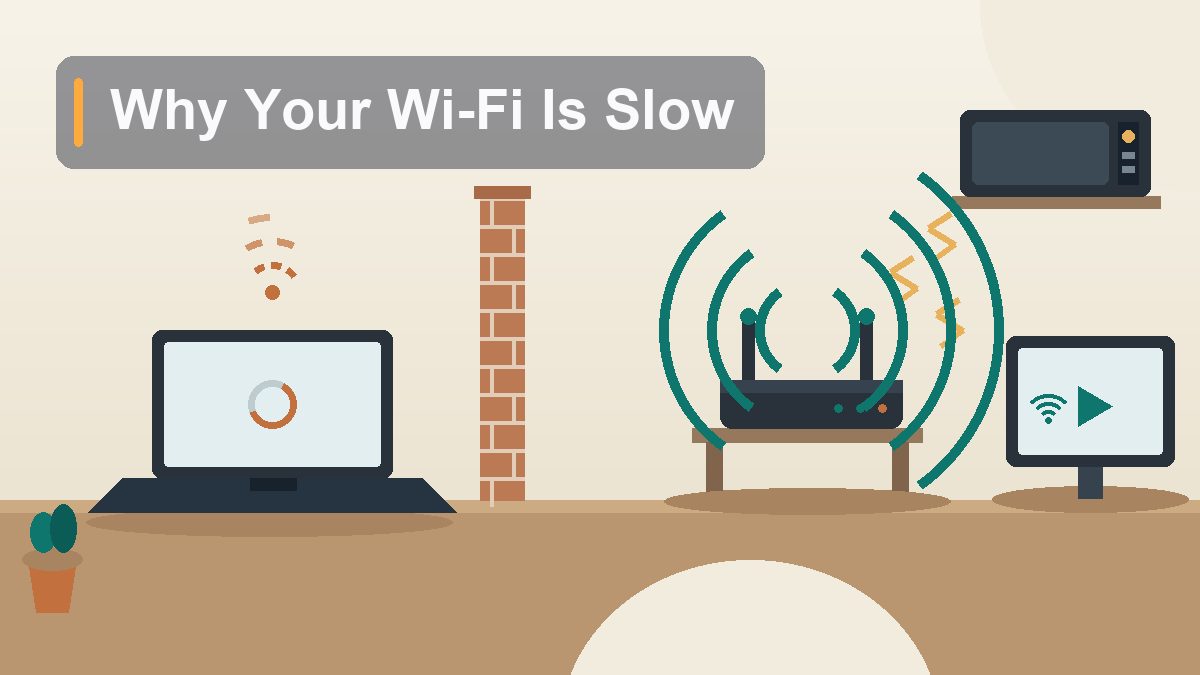
Why Your Wi-Fi Is Slow (and How to Actually Fix It)
The video call froze, the movie dropped to potato quality, and the speed test says one thing in the kitchen and another in the bedroom. Before you call the provider or buy anything, here’s the uncomfortable truth: in most homes, the internet is fine and the Wi-Fi is the problem — and the Wi-Fi is fixable.
Everyone has the same origin story. You’re paying for 300 megabits, the router has four proud little antennas, and yet the TV buffers every night at 9 p.m. like it’s observing a religious obligation. So you do what everyone does: you run a speed test on your phone, in the dead zone, standing next to the fridge, and you get 11 Mbps — and now you’re composing a furious email to your provider in your head. Stop. That test measured three different things stacked on top of each other, and only one of them belongs to the company you were about to yell at. Slow Wi-Fi is a layered problem — the pipe coming into your house, the box that turns it into radio waves, and the trip those waves take through your walls, your neighbor’s network, and occasionally your microwave. This guide peels the layers apart one at a time, in the order that actually finds the fault, starting with the test that settles the argument and ending with the phone call you may not need to make.
First, Figure Out Whose Fault It Is
The internet and the Wi-Fi are two different suspects
The single most useful concept in home networking is this: “the internet is slow” and “the Wi-Fi is slow” are different complaints with different culprits, and most people never separate them. Your provider delivers a wired connection to a box in your home — the modem (or the modem half of your combo gateway). Everything after that box is radio, and radio is your responsibility. The provider’s pipe can be perfectly healthy while your Wi-Fi mangles it, or the Wi-Fi can be flawless while the pipe itself is having a bad week. If you don’t split these apart first, you’ll spend a weekend moving furniture to fix a problem that’s actually at a utility pole three streets away.
The separation test takes ten minutes and one Ethernet cable. Find a device with an Ethernet port — a laptop, a desktop, a game console — and plug it directly into the router or gateway. Run a speed test there (more on doing it properly in the next section). That wired number is, for practical purposes, what your provider is actually delivering. Now unplug, connect to Wi-Fi, and run the same test from the same spot. If the wired number is fast and the wireless number is slow, your internet is fine and everything in this article about placement, bands, and channels applies to you. If the wired number is also slow, skip to the last section — the problem is upstream of your house, and no amount of router repositioning will touch it.
No Ethernet port anywhere? The fallback is standing directly next to the router with a clear line of sight and testing there on Wi-Fi. If that number is close to your plan speed, the signal reaching the router is fine and the losses happen on the way to your couch — which, again, means this article is the right one.
How to Run a Speed Test That Actually Tells You Something
Three tests, ten minutes, one honest answer
A speed test is not a verdict; it’s a measurement of a specific path at a specific moment, and sloppy testing produces numbers that mean nothing. Done right, you need exactly three tests. Test one: wired, plugged into the router, with nothing else using the network — pause the cloud backup, tell the house, and don’t run it while someone is streaming 4K in the next room, or you’ll measure your family’s bandwidth appetite instead of your connection. Test two: Wi-Fi, same device if possible, right next to the router. Test three: Wi-Fi from the problem spot — the bedroom, the office, the couch where the buffering happens.
Use a reputable tester like Speedtest or your provider’s own tool, run each test two or three times, and look at the pattern rather than any single result. Three numbers matter, and people usually only read the first. Download speed is the headline, measured in megabits per second (Mbps — note that’s megabits, not megabytes; divide by eight if you’re comparing against a file download). Upload speed matters if your complaint involves video calls or sending large files; on many cable plans it’s a tenth of the download, which surprises people every single time. And ping (latency), the little number everyone ignores, is the one that governs whether calls feel snappy or cursed — under 30 ms is great, over 100 ms and conversations develop that walkie-talkie rhythm where everyone talks over everyone.
Now read the pattern. Wired fast + Wi-Fi-next-to-router fast + problem-spot slow: classic coverage problem — placement and interference, sections ahead. Wired fast + Wi-Fi slow everywhere, even next to the router: the router itself is the bottleneck — bands, channels, firmware, or age. Wired slow: stop reading, call the provider (but read the last section first so the call goes well). And one timing note: test again in the evening. Congestion on shared neighborhood infrastructure mostly shows up between 7 and 11 p.m., which is exactly when everyone tests it for the first time and blames the router.
Router Placement: The Free Fix
The shelf behind the TV is a graveyard
If slow Wi-Fi has a single greatest cause, it’s not the router and it’s not the provider — it’s where the router lives. ISPs install the gateway wherever the cable enters the house, which is usually a corner, behind a television, inside a cabinet, or on the floor of a coat closet, and then the family spends four years wondering why the signal dies in the bedroom. Wi-Fi is radio, and radio hates exactly the things homes are made of: it radiates outward from the antennas, weakens with distance, and gets eaten by obstacles. Every wall costs you signal; a brick, concrete, or stone wall costs you most of it; and metal — filing cabinets, refrigerators, the foil-backed insulation in many walls — might as well be a blackout curtain.
The fixes are unglamorous and disproportionately effective. Move it to the center of the home, not the center of where the cables are. The cable company chose the corner; you can override their choice with a $15 longer coax or Ethernet run, or by relocating just the router while the modem stays put. Raise it up. Wi-Fi radiates like a lamp, and a router on the floor is lighting the basement joists and the underside of your couch. Bookshelf height or above is the rule; the top of a bookcase is genuinely one of the best spots in most homes. Get it out of the cabinet. Media consoles and closets are where signal goes to die quietly. Point the antennas vertically if it has external ones — the signal spreads sideways from a vertical antenna like a donut, which is exactly the plane your devices live on. And keep it away from the kitchen and the TV itself, both of which are interference sources you’ll meet in the next section.
People resist this because the router is ugly and the convenient spot is wrong. Understandable. But placement is the only fix that is free, takes twenty minutes, and regularly doubles the speed at the far end of the house. Do it before anything else on this list.
Interference: The Invisible Traffic Jam
Your microwave is a tiny radio station
Wi-Fi shares its airspace, and it shares badly. The 2.4 GHz band — the one with the long range that every device defaults to — is one of the most crowded pieces of the radio spectrum in existence. Microwave ovens leak energy at almost exactly that frequency, which is why the Wi-Fi stutters precisely when someone reheats soup: for those ninety seconds, your kitchen contains a 1,000-watt radio transmitter shouting on your channel. Bluetooth devices, baby monitors, older cordless phones, and wireless security cameras all live in the same band. None of them mean harm. All of them are noise.
Then there’s the interference nobody sees: your neighbors. In an apartment building or a dense suburb, a Wi-Fi analyzer app on your phone will show a dozen or two dozen networks in range, all overlapping, all competing for the same few channels. Your network doesn’t need to be the strongest signal in the air; it needs to be on the least crowded lane. That’s the channel fix two sections down.
The practical responses are simple. Move the router away from the kitchen and from the big metal appliances. If a particular device seems to murder the Wi-Fi when it runs — a baby monitor is the classic offender — see if it has a channel or frequency setting, or relocate it. And any device that can move off 2.4 GHz should move off 2.4 GHz, which brings us neatly to the band question.
2.4 GHz vs 5 GHz: Pick the Right Lane
Range vs speed, the eternal trade
Every dual-band router broadcasts (at least) two networks, and most households treat the choice between them as trivia. It isn’t — it’s the trade at the heart of half the Wi-Fi complaints in existence. 2.4 GHz is the long-range, wall-penetrating, slow lane: real-world speeds commonly top out around 50–100 Mbps even on paper-faster routers, and the band is congested with every gadget and neighbor as described above. 5 GHz is the short-range express lane: dramatically faster (several hundred Mbps is routine), far less crowded, but it fades faster with distance and gives up against walls much sooner. Newer Wi-Fi 6E and Wi-Fi 7 gear adds a 6 GHz lane — faster still, even shorter-legged, and nearly empty because so few devices use it yet.
The matching is common sense once you see it as lanes. Devices near the router that move a lot of data — the smart TV, the game console, the work laptop, the streaming box — belong on 5 GHz (or 6 GHz, if both router and device support it). Devices far away or on the other side of walls may genuinely do better on 2.4 GHz despite its lower ceiling, because 100 stable megabits beats 400 megabits that drop to zero every time someone closes a door. Smart-home gadgets mostly only speak 2.4 GHz anyway; they’ll self-sort.
One trap to check: many modern routers merge the bands under a single network name and “steer” devices automatically. When it works, it’s great. When it doesn’t, your laptop clings to 2.4 GHz from across the house like a bad habit. If your speeds are weirdly capped near the router, log into the router’s app or admin page, look for a setting called band steering, Smart Connect, or a unified network name, and try splitting the bands into two visible networks — “Home” and “Home-5G” — so you can choose deliberately. On a Mac you can hold Option and click the Wi-Fi menu icon to see which band you’re actually on; on Windows, Settings > Network & internet > Wi-Fi > your network’s properties shows the band and link speed.
Channels: Switching Lanes on the Airwaves
Everyone on your street is on channel 6
Each band is divided into channels, and channels are where the neighbor problem gets solved. On 2.4 GHz, the channel situation is genuinely silly: there are 11 or 13 channels depending on your region, but they overlap each other so thoroughly that only three — 1, 6, and 11 — don’t stomp on their neighbors. Every router ships defaulting to one of them, which means in a dense area, channel 6 carries your network, both adjacent neighbors’, the guy across the street’s, and the espresso machine display at the café on the corner.
The fix: install a free Wi-Fi analyzer app on your phone (search your app store for “Wi-Fi analyzer” — any well-reviewed one draws the same overlapping-humps graph), stand where the problem is, and see which of 1, 6, and 11 is quietest. Then log into your router — usually by typing 192.168.1.1 or 192.168.0.1 into a browser, or through its companion app (the eero app, the Google Home app for Nest Wifi, TP-Link’s Tether, Netgear’s Nighthawk app) — find the wireless settings, and set the 2.4 GHz channel manually to the empty one. Two caveats: many mesh systems manage channels automatically and deliberately hide this setting, in which case trust them; and after changing the channel, give it a day. Neighbors’ routers auto-hop channels too, and the quiet lane moves.
On 5 GHz the channel story is happier — there are more channels and they don’t overlap — but with one quirk worth knowing: some of the best 5 GHz channels are “DFS” channels, shared with radar systems. Routers can use them, but must abandon them instantly if they detect radar, which occasionally manifests as your Wi-Fi briefly vanishing near an airport or weather station. If your 5 GHz network plays peekaboo, switching it off a DFS channel to a plain one (36 through 48 are the usual safe picks) often ends the mystery.
Too Many Devices, Not Enough Road
The smart lightbulb census
Here’s an exercise: count the devices on your Wi-Fi. Not the ones you think of — the actual count. The phones, tablets, and laptops, sure, but also the TV, the streaming stick, the game console, the printer, the thermostat, the doorbell, the speakers, the robot vacuum, and every smart bulb, plug, and camera. The modern average sails past 20 devices; 40 is unremarkable. Most idle politely, but each one checks in with the router constantly, and every check-in is airtime the TV can’t use. Older and cheaper routers handle a crowd badly — they were built for an era of five devices and now run a small city’s worth of connections on hardware that cost $49 in 2018.
The bigger bandwidth issue, though, is usually one or two hogs, not the crowd. A 4K stream takes around 15–25 Mbps. A big game download will cheerfully consume everything available. Cloud photo backups and drive syncs are the stealth offenders — they saturate your upload, and a saturated upload strangles the whole connection, because even downloads need to send little “got it, send more” receipts upstream. If everything grinds to a halt whenever someone’s laptop decides to back up 80,000 photos, that’s not the Wi-Fi failing; that’s the queue.
Two fixes, both free. First, find the scheduling options in your cloud sync and backup apps and confine the big uploads to overnight. Second, look for a QoS (Quality of Service) setting in the router — it’s traffic shaping that prioritizes video calls and streaming over background downloads. Modern routers’ QoS is usually a one-toggle “prioritize video calling” affair rather than the spreadsheet it used to be. And if a specific device is always the villain, wiring that one device with Ethernet takes it off the radio entirely, which helps everything else breathe.
The Reboot and the Firmware Update
Turning it off and on again, but on purpose
The reboot deserves its reputation. A router is a small computer running a full operating system, and like any computer left on for six months, it accumulates memory leaks, wedged processes, and a connection table full of ghosts. The symptoms of a router that needs rebooting are specific: speeds that decay over days and snap back after a power cycle, devices that can see the network but can’t reach the internet, a router that’s warm and sullen. Reboot properly — unplug it (or use the app’s restart), wait a full 30 seconds so the capacitors actually drain and the upstream connection resets, then plug it back in and give it two minutes to renegotiate with the modem. If a reboot fixes your Wi-Fi for a week and then it degrades again on a schedule, that’s not a ritual to live with — it’s a symptom of old firmware or tired hardware, both addressed next.
Firmware is the router’s operating system, and it matters more than its unglamorous name suggests: updates carry real performance fixes, better band-steering logic, and security patches for a device that is, let’s remember, the front door of your entire digital life. Modern mesh systems (eero, Nest Wifi, Deco, Orbi) update themselves silently, which is one of their underrated virtues. Traditional routers often don’t, and their owners discover in year four that the update from year one fixed the exact dropout they’re experiencing. Log into the admin page or app, find Firmware or Update under Administration or Advanced, and check. While you’re in there, Microsoft’s support pages and Apple’s Mac support site both have official walkthroughs for the device-side Wi-Fi settings worth checking too — drivers and OS updates occasionally matter as much as the router’s own.
Is Your Router Just Old?
Wi-Fi generations, translated
Routers don’t wear out like cars, but they do age out like phones: the standard they were built for eventually becomes the bottleneck. The version history is mercifully simple. Wi-Fi 4 (802.11n, sold roughly 2009–2014): if this is your router, it is the problem, full stop — it predates the assumption that a home streams video. Wi-Fi 5 (802.11ac, ~2014–2019): still genuinely fine for plans up to a few hundred megabits in a small-to-medium home; keep it unless coverage is the issue. Wi-Fi 6 / 6E (2019 onward): handles crowds of devices much better and adds the 6 GHz lane on 6E; this is the current sensible default. Wi-Fi 7 (2024 onward): excellent, early-adopter priced, and pointless unless your devices and your internet plan can use it.
How to identify yours: the model number is on the sticker underneath, and the model number plus “specs” in a search tells you the generation in one click. If your router came from your ISP, it’s often a generation behind and mediocre in ways that are hard to see — providers buy in bulk for adequacy, not excellence. The math that decides replacement: a router older than about five years, a home that has added twenty devices since it was installed, an internet plan faster than the router can deliver over Wi-Fi even at arm’s length, or firmware that hasn’t been updated since a previous administration. Any two of those, and the hardware section below applies to you.
Extender, Mesh, or a New Router
Three fixes, three budgets, one correct choice
If the diagnosis is coverage — fast near the router, dead in the back bedroom — you have three products to choose from, and the industry sells them with maximal confusion. Here’s the honest version.
| Option | Cost | Best for | The catch |
|---|---|---|---|
| New single router (Wi-Fi 6) | $80–$180 | Apartments and smaller homes; replacing a pre-2019 router | One radio source can’t bend around a big or brick-heavy house |
| Range extender | $25–$60 | One specific dead room; tight budgets | Typically halves throughput on its hop and creates a second network name to manage |
| Mesh system (2–3 nodes) | $150–$400 | Multi-floor or sprawling homes; many devices; set-and-forget owners | Costs the most; overkill for a one-bedroom |
Extenders are the tempting cheap answer and the most commonly regretted. An extender listens to your router’s signal and rebroadcasts it — which means it spends half its airtime repeating, and the result is often a dead zone replaced by a slow zone with a new name like “Home_EXT.” Used for exactly one room that needs email-and-browsing speeds, placed where it still gets a good signal from the main router (not in the dead zone itself — that’s the universal mistake), an extender is fine. Asked to blanket a house, it’s a bandage on a floor plan.
Mesh is the fix that matches how modern homes actually fail. Instead of one router shouting from the corner, two or three matched nodes spread around the home cooperate as a single network — one name, devices hopping between nodes automatically, and a dedicated path between nodes on the better systems so the repeating penalty disappears. Setup is an app and fifteen minutes, firmware updates itself, and the systems handle the band-steering and channel decisions that this article taught you to do manually. The guidance: put nodes where the signal from the previous node is still strong, one per floor or per major wall barrier, and wire them with Ethernet back to the main unit if your house happens to have the ports (that single upgrade, called wired backhaul, makes any mesh dramatically better).
And the humble option: if your home is small and your router is simply ancient, a single good Wi-Fi 6 router placed correctly — center, high, uncabineted — beats a cheap mesh kit every time. Spend on placement before you spend on hardware.
When to Actually Call the ISP
What to say so they don’t read you the script
Sometimes the answer genuinely is the provider, and after working through the above, you’ll know it with evidence rather than vibes. The call-the-ISP cases are specific. The wired test is consistently below your plan speed, at different times of day, with nothing else running. (Know that plans are sold as “up to” and wired real-world is typically 80–100% of the number — 270 on a 300 plan is fine; 90 is a phone call.) The connection drops entirely on a schedule or in patterns — every evening, every time it rains (yes, really; water in outdoor cable fittings is a classic). Ping is high even wired, which points to congestion or line trouble upstream of you. The modem’s own signal levels are off, which the support agent can read remotely in about a minute.
When you call, the first-line script will tell you to reboot the modem. You will have already done this, along with everything else, and the difference between a twenty-minute resolution and a ninety-minute purgatory is saying so with numbers: “I’m getting 85 Mbps wired directly to the modem at 8 p.m. and 280 at 8 a.m., on a 300 plan — can you check the signal levels at the modem and the node utilization?” That sentence skips three levels of script because it proves the fault is theirs. Likely outcomes: they reprovision the modem remotely (free, five minutes), they find a failing line or connector and send a technician (free if it’s their infrastructure — ask explicitly before agreeing to any visit fee), or they confirm neighborhood congestion and you learn whether an upgrade or a competing provider is the real fix.
One last trap to avoid on the call: the agent will sometimes offer to fix slow Wi-Fi by upgrading your plan. If your wired speed already matches your plan, a faster plan fixes nothing — it’s a bigger pipe feeding the same kinked hose. Fix the hose first.
The Setup That Stays Fast
Ten minutes a season, so you never redo this
Everything above is a rescue, and the follow-through is a small standing habit so the rescue stays rescued. Reboot the router monthly — or, better, use the scheduled-restart setting many routers now bury in their admin pages, set for 4 a.m. Check for firmware updates quarterly if your router doesn’t self-update. When you add a device, make the lane decision deliberately: 5 GHz if it’s near and hungry, 2.4 GHz if it’s a smart bulb. Re-run the three-test speed check twice a year, wired and wireless, so you notice slow degradation before it becomes a personality trait of the house. And keep the router where the rescue put it — out in the open, up high, centered — because the number one way slow Wi-Fi returns is a furniture rearrangement that quietly re-buries it behind the TV. Do that, and the next time the movie night freezes at someone else’s house, you’ll be the one who knows exactly which of the three suspects it is, and which ten minutes of fixes would prove it.
This article is educational and reflects general best practices for consumer home networking. Sources referenced include Microsoft’s Windows support documentation and Apple’s Mac support documentation. Prices are typical US street prices as of publication and will drift. No affiliate links or sponsored content. External links verified live at publication, August 2026.