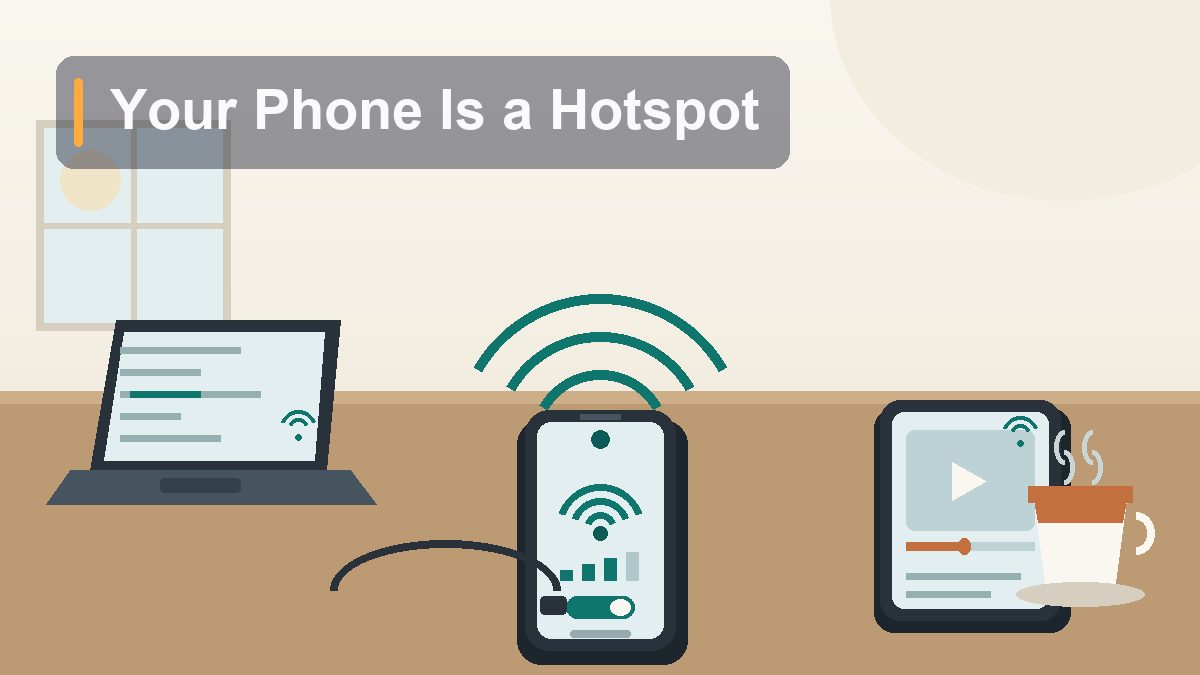
How to Use Your Phone as a Wi-Fi Hotspot (Without Regretting It)
Your phone is a perfectly good router hiding in your pocket, and it will happily save a workday at a coffee shop with dead Wi-Fi. It will also happily burn through a month of hotspot data in one afternoon of streaming, cook itself in your bag, and broadcast an open network named “iPhone” to the whole terminal. Here’s how to get the rescue without the regret.
The coffee shop Wi-Fi died at 9:40 on a Tuesday morning, twelve minutes before a video call my brother could not miss. He did what everyone does: stared at the spinning wheel, glared at the barista as if she controlled the ISP, and then remembered — his phone was sitting right there, full bars of 5G, doing nothing. Two minutes later his laptop was online through the phone’s hotspot and he made the call. Two weeks later he got a text from his carrier that he’d blown through his entire hotspot allotment, because nobody had told him the second half of the trick. That’s the whole story of tethering in miniature: the feature itself is easy, genuinely, a toggle and a password. What separates a lifesaver from a problem is knowing how the three connection types differ, how fast real activities eat data, and the two or three habits that keep it secure and cool. This guide covers all of it — iPhone and Android, Wi-Fi versus USB versus Bluetooth, bands and passwords, and the honest math on data and battery.
What Tethering Actually Is (and Why Carriers Care)
Your phone becomes a tiny router — and your carrier is watching the meter
“Tethering” and “hotspot” get used interchangeably, and mostly that’s fine. Tethering is the umbrella term for sharing your phone’s cellular data connection with another device. A mobile hotspot is the most popular way to do it: your phone starts acting like a home router, broadcasting a Wi-Fi network that laptops, tablets, and other phones can join. But there are two other flavors that matter — USB tethering, where a cable carries the connection, and Bluetooth tethering, the slow but frugal option — and picking the right one for the situation is half the skill.
One thing to understand up front: to your carrier, hotspot traffic is a distinct category of data. Many plans that advertise generous or “unlimited” data on the phone itself include a separate, smaller bucket specifically for hotspot use — often somewhere in the range of 5 to 60 GB per month depending on the plan, after which hotspot speeds typically drop to something barely usable for the rest of the billing cycle. Some budget plans don’t include hotspot at all, or charge extra to unlock it. None of this is hidden exactly, but it’s buried in plan details nobody reads, which is why so many people discover their hotspot cap the way my brother did. Before your first real tethering session, open your carrier’s app or website and find two numbers: how much hotspot data your plan includes, and what happens when you run out. That thirty-second check changes how you use everything below.
Turning It On: iPhone (Personal Hotspot)
One toggle, a password, and an optional family trick
On an iPhone, everything lives in Settings > Personal Hotspot (on some versions you’ll also see it under Settings > Cellular). Flip on Allow Others to Join and your phone is broadcasting. The network name is your iPhone’s name — the thing you set years ago, which is why half the airports in America have a network called “iPhone” and the other half have “Jessica’s iPhone.” If you’d like something more identifiable (or less identifiable), change it under Settings > General > About > Name.
Tap Wi-Fi Password and set something strong before anyone connects — more on what “strong” means in a moment. Then on the laptop or tablet, join that network like any other Wi-Fi. A blue bubble or bar appears at the top of the iPhone showing how many devices are connected; that’s your dashboard, and glancing at it occasionally is a good habit, because it tells you instantly if something unexpected has latched on.
Two iPhone details worth knowing. First, Family Sharing: if your household uses it, go to Settings > Personal Hotspot > Family Sharing and you can let family members’ devices join your hotspot automatically, without typing the password, with an option to require your approval for each new connection. It’s the right setup for a kid’s iPad on a road trip — zero password wrangling, and you still control who gets on. Second, if your Mac or iPad shares the same Apple Account as your iPhone, it can join via Instant Hotspot — the phone appears in the Wi-Fi menu without you touching it, which is delightful and also a small data risk we’ll come back to, because your Mac can quietly decide to use it.
Turning It On: Android (Hotspot & Tethering)
Same idea, slightly different menu on every brand
Android puts the feature under Settings > Network & internet > Hotspot & tethering on Pixel and most near-stock phones, and under Settings > Connections > Mobile Hotspot and Tethering on Samsung Galaxy devices. Other manufacturers shuffle it slightly, but searching “hotspot” in the Settings search bar always lands you there. Tap Wi-Fi hotspot (Samsung: Mobile Hotspot), turn it on, and then — before connecting anything — tap into the hotspot’s settings to set the network name and password.
Android gives you a couple of controls iPhone doesn’t. Most Android phones let you choose the hotspot’s frequency band (2.4 GHz or 5 GHz, sometimes 6 GHz on newer hardware) right in the hotspot settings — we’ll get to why that matters below. Many also offer an auto-off or “turn off when no devices are connected” toggle, which you should absolutely enable: it means the hotspot shuts itself down when you forget, which you will. Some Android phones also let you set a per-connection data limit or see a live tally of how much data each tethered device has used, which is genuinely useful for figuring out which device (or app) is the greedy one.
Quick Settings is your friend here on both platforms, honestly. On Android, add the Hotspot tile to your Quick Settings shade so toggling it is one swipe and one tap. On iPhone, add the Personal Hotspot control to Control Center (Settings > Control Center). The less friction in turning it on, the more likely you are to also turn it off — and off is where the regrets live.
Wi-Fi vs. USB vs. Bluetooth: Pick the Right Pipe
The cable is the underrated champion
Most people default to Wi-Fi hotspot mode because it’s the one they’ve heard of, and for connecting multiple devices or a device with no ports to spare, it’s correct. But if it’s just you and one laptop, USB tethering is better in almost every way, and it mystifies me that it isn’t the default recommendation everywhere.
Wi-Fi hotspot — the flexible one. Any number of devices can join (both platforms cap it, typically around five to ten connections), it works with anything that has Wi-Fi, and there’s no cable to remember. The downsides: it’s the most power-hungry mode, since the phone is running a cellular radio and a Wi-Fi access point simultaneously; it exposes a network name and handshake that others can see; and speeds can sag in radio-congested places like conference halls.
USB tethering — the sleeper pick. Plug the phone into the laptop with a normal charging cable, then on iPhone tap “Trust” if asked (Personal Hotspot just works over the cable when it’s enabled); on Android, toggle USB tethering in the same Hotspot & tethering menu. The laptop sees a wired network connection, no Wi-Fi involved. Three big wins: the phone charges from the laptop while it works, so battery anxiety inverts; there’s no wireless network for anyone to see or attack; and the connection is immune to Wi-Fi congestion. The catch is one device at a time, and on a laptop with a small battery you’re trading laptop charge for phone charge. For a solo work session in an airport, USB is the professional move.
Bluetooth tethering — the niche option. Pair the devices over Bluetooth, then enable Bluetooth tethering on the phone (on iPhone it works through Personal Hotspot once paired). Speeds are a fraction of what Wi-Fi delivers — think a handful of megabits — but Bluetooth sips power compared to running a Wi-Fi access point. It’s for the “I’m at 40% battery with three hours left and just need email and docs” scenario. Nobody’s first choice, occasionally the right choice.
| Method | Speed | Battery impact on phone | Best for |
|---|---|---|---|
| Wi-Fi hotspot | Fastest wireless option; supports multiple devices | Highest — cellular plus Wi-Fi radios both working hard | Multiple devices, tablets, sharing with family or coworkers |
| USB tethering | Fast and stable; no wireless congestion | Lowest — the phone charges while tethered | Solo laptop sessions, airports, security-conscious use |
| Bluetooth tethering | Slow (a few Mbps at best) | Low — the most frugal wireless mode | Low-battery emergencies, light tasks like email and documents |
Passwords, Bands, and Other Settings That Matter
Five minutes of configuration that prevents most problems
Set a real password. Both platforms generate a default password, and both defaults are mediocre — iPhone’s is a jumble that’s strong but impossible to type, and people often “fix” it by setting “12345678,” which is a public network with extra steps. Use a passphrase of four or five random words: it’s easy to say out loud to a coworker, easy to type once, and effectively uncrackable for WPA2/WPA3 Wi-Fi. Never run an open hotspot. An open network named “Free Airport Wi-Fi” broadcasting from your bag is a gift to anyone with bad intentions and a laptop, and every device that joins burns your data.
Pick the right band. If your phone lets you choose (most Androids; iPhones manage it automatically, with a “Maximize Compatibility” toggle on some models that forces 2.4 GHz), here’s the rule: 5 GHz is faster but shorter-ranged; 2.4 GHz reaches farther and passes through obstacles better but is slower and far more congested, since every microwave, baby monitor, and neighbor’s router lives there. Phone on the desk next to the laptop? 5 GHz, no contest. Phone in a bag charging across the room while you work? 2.4 GHz will hold the link more reliably. On iPhone, leave Maximize Compatibility off unless an older device can’t see your hotspot — that toggle exists for legacy gadgets, not for you.
Name it something boring. Your hotspot name is visible to everyone nearby. “John’s iPhone” tells the room there’s a John with an iPhone; “FBI Surveillance Van” tells the room you’re hilarious and also not paying attention. Something neutral like “CafeTable4” identifies the network to your devices without identifying you.
The Data Math: Where the Gigabytes Go
Hotspot data evaporates faster than phone data, because laptops act like they’re home
Here’s the trap that gets nearly everyone the first time: your phone is frugal with cellular data by design — apps defer big downloads, video streams at compressed quality, backups wait for Wi-Fi. The moment you tether a laptop, the laptop believes it’s on real Wi-Fi, and it behaves accordingly. That means operating system updates, cloud photo sync, Dropbox or OneDrive catching up, browser tabs auto-playing video, and a dozen background services all helping themselves. The hotspot data didn’t disappear into your video call; half of it disappeared into your laptop doing housekeeping you never asked for.
Rough numbers for planning purposes, because knowing them changes behavior. Standard-definition video streaming runs around 1 GB per hour; HD runs roughly 3 GB per hour, and 4K can exceed 7 GB per hour. A one-hour video meeting typically lands between 0.5 GB and 2 GB depending on the platform and whether everyone’s camera is on. Web browsing and email are nearly free by comparison — tens of megabytes an hour. Music streaming is a couple hundred megabytes an hour. A single OS update or a modern game download can be 5 to 20 GB in one shot, which is to say: one unattended update can eat an entire month’s hotspot allotment before lunch.
So the practical rules: tether for work, not for entertainment; if you must stream, step the quality down to SD in the app’s settings; and before a tethered session, pause the sync-hungry services on the laptop — cloud drives, photo backup, and pending system updates are the big three. Both Windows and macOS let you mark a network as “metered,” which tells the OS to stop background downloads on that connection — on Windows it’s in the network’s properties, on a Mac it’s “Low Data Mode” on the joined network’s details. Set it once for your hotspot’s name and your laptop will stop treating your phone like an unlimited pipe. Phones tethered to phones can do the same: on the device receiving the hotspot, enable Low Data Mode (iPhone) or Data Saver (Android) for that network.
Two more carrier realities to know, stated plainly. First, deprioritization: many plans note that on congested towers your traffic may be temporarily slowed relative to other customers, and hotspot traffic is often first in line for that treatment — which is why the same hotspot can be blazing at 7 a.m. and sluggish at lunchtime in a busy area. It’s not broken; it’s queueing. Second, overage behavior varies: some plans simply slow hotspot data to a crawl past the cap, others charge per extra gigabyte, others cut it off entirely. Your carrier’s app shows the counter — check it after heavy sessions until you develop a feel for your own usage, the same way you’d glance at a fuel gauge in an unfamiliar car.
Battery and Heat: The Physics Tax
Running two radios hard is work, and work makes heat
A hotspot session is one of the most demanding things you can ask a phone to do: the cellular modem is pulling data from a tower (often at a weak signal, which raises power draw), the Wi-Fi radio is re-broadcasting it, and the processor is shuffling everything between them. Expect battery drain noticeably faster than normal use — a full workday of hotspotting can flatten a phone that would otherwise last until midnight, especially on older hardware or in areas where the phone is fighting for a signal.
The countermeasures are simple. If there’s an outlet, plug the phone in — a hotspot session is exactly when the charger earns its keep. No outlet? USB-tether to the laptop, which charges the phone while it works, or drop to Bluetooth tethering for light tasks. Keep screen brightness down and the screen off; the display is pure overhead during tethering. And close anything on the phone itself that’s pulling data in the background — you’re feeding one data connection, not two.
Heat deserves its own warning. A hotspotting phone in direct sun on a car dashboard, or buried under a jacket in a backpack, will get genuinely hot, and both iPhone and Android will respond by throttling performance or shutting down features to protect the battery — sometimes including the hotspot itself, mid-call. Give the phone air and shade. If it feels uncomfortably warm, that’s your cue to take a break or reposition it, not a thing to push through. A phone sitting on a desk, screen off, tethering away, runs warm but fine; a phone stuffed in a bag pocket doing the same is asking for a thermal shutdown at the worst moment.
Security Habits: Don’t Leave the Door Open
Your hotspot is a network — run it like one
A hotspot is a real network with real attack surface, and the habits that keep it safe are the same boring ones that keep home routers safe, just more so, because your “router” travels to airports and hotel lobbies. The checklist is short.
Never run it open. Said it above, saying it again: no password means anyone in range joins, and everything they do — including anything illegal — flows through your phone number’s data connection. Also mind who you hand the password to; if half the conference room knows it, change it afterward, which takes ten seconds.
Turn it off when you’re done. This is the single highest-value habit in the entire article. An idle hotspot is broadcasting your network name to everyone nearby, accepting connection attempts, draining battery, and — on iPhone with Instant Hotspot — available to your own laptop, which may join it silently and start syncing photos over cellular without asking. Auto-off settings help, but the discipline is: task done, hotspot off, same motion as locking a car.
Watch the connected-device count. The iPhone’s blue status bar and Android’s hotspot settings both show how many devices are attached. You tethered one laptop and the counter says two? Find out what the second one is — usually it’s your own tablet being helpful, but check. On Android, most phones let you see connected devices by name and block ones you don’t recognize.
Keep the phone updated and the hotspot password fresh-ish. Security fixes for the Wi-Fi stack arrive in normal OS updates, and a password you rotate every few months shrinks the window for anyone who ever saw it typed over your shoulder. And prefer USB tethering in genuinely sensitive situations — working with confidential material in a crowded public place — because a wired connection has no handshake to attack and no name to spoof.
This article is educational and reflects iOS and Android hotspot features as of August 2026; menu names vary slightly by version and manufacturer. Data-usage figures are rough planning estimates — actual consumption varies by app, quality settings, and network conditions; hotspot allotments and overage policies vary by carrier and plan, so check your own plan details. No affiliate links or sponsored content.