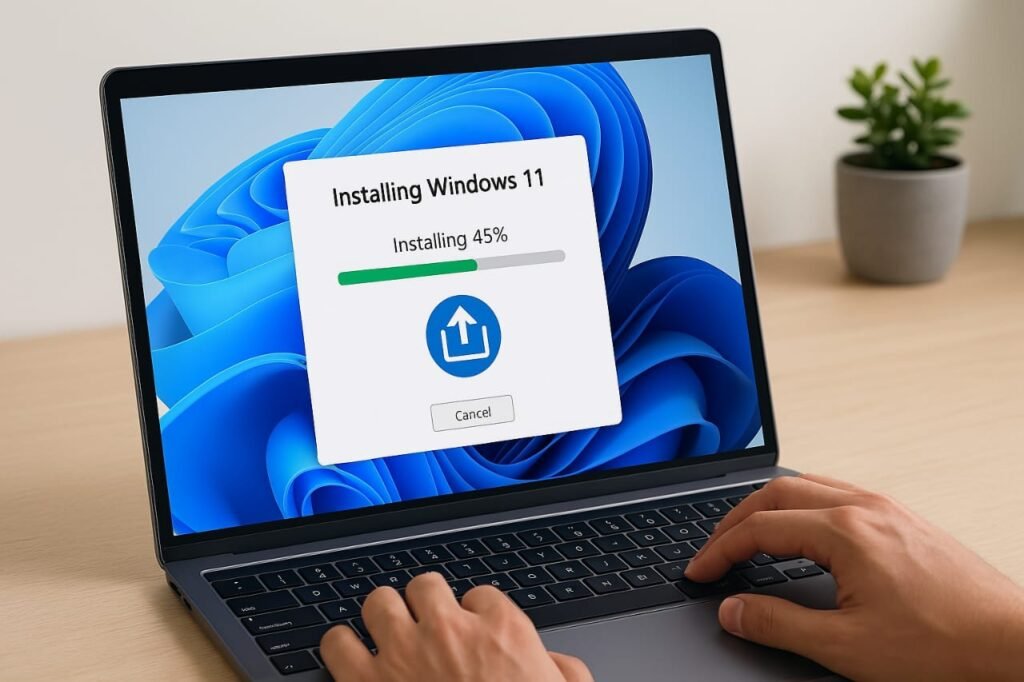
Microsoft advises against installing Windows 11 on unsupported hardware because of potential instability and limited updates. However, with careful steps, you can extend your PC’s life and enjoy Windows 11’s features.
| Requirement | Microsoft’s Standard | Workaround Available |
|---|---|---|
| TPM | TPM 2.0 required | Registry edit or Rufus USB |
| Secure Boot | Must be enabled | Rufus USB bypasses this |
| CPU | Specific 8th Gen Intel or newer CPUs | Registry edit or Rufus USB |
| RAM | 4 GB minimum | No workaround needed (most PCs meet this) |
| Storage | 64 GB minimum | No workaround needed (most PCs meet this) |
Reference: Microsoft’s Windows 11 Requirements
Check Your PC’s Compatibility
First, verify if your system meets Windows 11’s requirements. Microsoft’s PC Health Check tool scans your hardware for TPM 2.0, Secure Boot, and supported CPUs. Download the tool from Microsoft’s website and run it. The tool displays a report showing which components pass or fail.
If your PC lacks TPM 2.0, Secure Boot, or a supported CPU, don’t worry. Two methods—registry editing and Rufus—let you bypass these restrictions. Both approaches carry risks, so back up your data before starting.
Method 1: Registry Edit for Partially Compatible PCs
For PCs that nearly meet Windows 11’s requirements, a registry tweak allows installation. This method works best if your system has TPM 1.2 or a slightly older CPU. Follow these steps:
- Press Win + R to open the Run dialog.
- Type regedit and press Enter to launch the Registry Editor.
- Navigate to HKEY_LOCAL_MACHINE\SYSTEM\Setup\MoSetup.
- Right-click the MoSetup folder, select New, then choose DWORD (32-bit) Value.
- Name the new entry AllowUpgradesWithUnsupportedTPMOrCPU.
- Double-click the entry and set its value to 1.
- Close the Registry Editor.
This tweak instructs the Windows 11 installer to ignore TPM and CPU checks. Now, download the Windows 11 ISO from Microsoft’s website. Mount the ISO by double-clicking it, then run setup.exe to start the installation. Follow the on-screen prompts to upgrade your system.
This method suits PCs with minor compatibility issues. However, you might face update limitations or performance hiccups. Always back up files to an external drive or cloud storage before proceeding.
Method 2: Using Rufus for Fully Incompatible PCs
For older PCs missing TPM 2.0 or Secure Boot, the Rufus utility creates a bootable USB that skips these checks. This method works for systems far below Microsoft’s requirements. Here’s how to do it:
- Download the latest Rufus version from its official website.
- Get the Windows 11 ISO from Microsoft’s download page.
- Insert a USB drive with at least 8 GB of storage.
- Open Rufus and select your USB drive under Device.
- Under Boot selection, choose the Windows 11 ISO file.
- In the Image option dropdown, select Extended Windows 11 Installation (no TPM / no Secure Boot).
- Click Start to create the bootable USB.
- Restart your PC and boot from the USB (adjust BIOS settings if needed).
- Follow the installer’s prompts to set up Windows 11.
Rufus modifies the installation media to bypass hardware checks, making it ideal for very old systems. However, this approach increases the risk of system instability. Ensure you back up all critical data first.
Key Considerations Before Installing
Before upgrading, weigh the benefits against the risks. Installing Windows 11 on unsupported hardware can breathe new life into your PC, but challenges may arise:
- Data Safety: Save all important files to an external drive or cloud service like OneDrive or Google Drive.
- System Stability: Unsupported PCs might crash or run slowly with Windows 11.
- Update Restrictions: Microsoft may block future updates on non-compliant systems.
- No Official Support: Microsoft won’t assist with issues on unsupported hardware.
If you accept these risks, the upgrade can deliver Windows 11’s modern interface, improved multitasking, and new features. Test your system after installation to ensure critical apps work.
Alternative: Stay on Windows 10
If the risks seem too high, consider sticking with Windows 10. Microsoft supports Windows 10 until October 2025, providing security updates and compatibility. For many older PCs, Windows 10 runs smoothly without the need for workarounds.
To optimize Windows 10, clear unnecessary files, update drivers, and disable background apps. This approach avoids the uncertainties of running Windows 11 on unsupported hardware.
Troubleshooting Common Issues
Sometimes, installations hit snags. Here are quick fixes for common problems:
- Installation Fails: Ensure the registry tweak or Rufus settings are correct. Re-download the ISO if errors persist.
- Slow Performance: After installation, update drivers from your PC manufacturer’s website.
- No Updates: If Windows Update fails, check Microsoft’s support forums for manual update files.
For additional help, visit Microsoft’s community forums or tech sites like How-To Geek. These resources offer user-tested solutions for Windows 11 issues.
Why Upgrade to Windows 11?
Windows 11 offers a sleek design, better virtual desktops, and improved gaming features like DirectStorage. For users with older PCs, these upgrades can enhance productivity and entertainment. However, ensure your system can handle the new OS to avoid frustration.
By using the registry edit or Rufus method, you can install Windows 11 on most PCs. Choose the method that matches your system’s specs and proceed with caution.