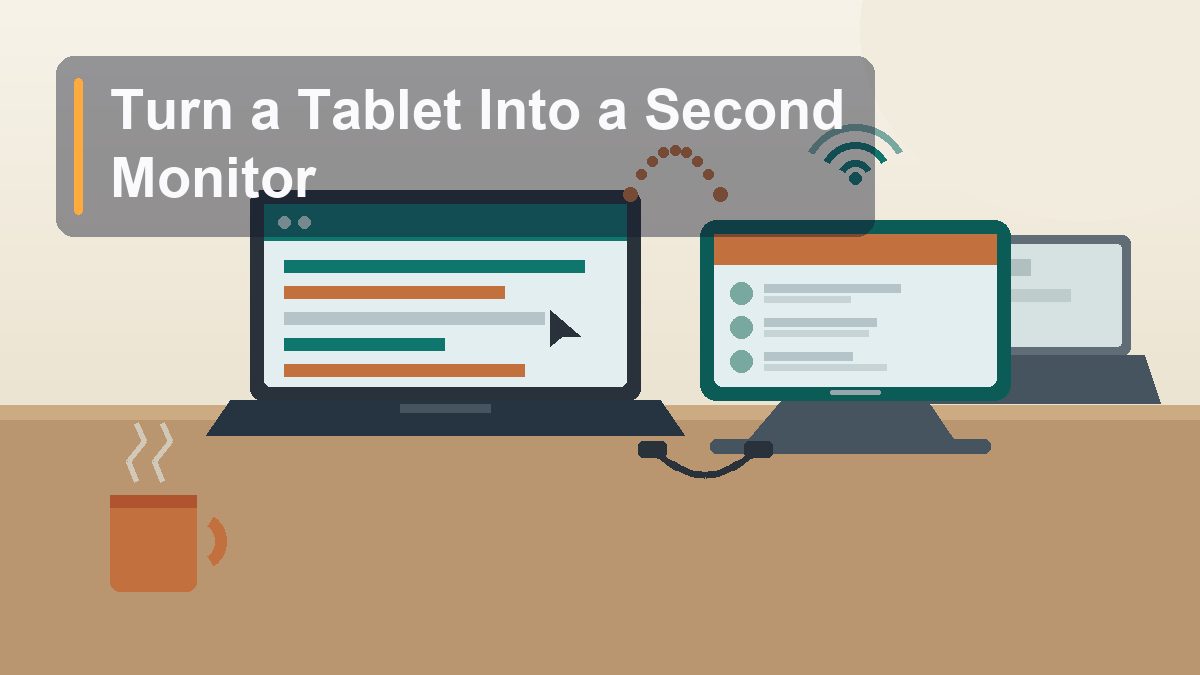
Turn a Tablet or Old Laptop Into a Second Monitor
Somewhere in your home is a screen you already paid for, sitting in a drawer or charging on a nightstand. With the right app — sometimes with no app at all — it can become the extra display that finally stops the window-shuffling madness on your main screen.
The average desk has a secret. Next to the laptop doing all the work, there’s usually a tablet that gets used for recipes and streaming, or an old laptop that got replaced two years ago and never quite made it to the recycling run. Both of those devices contain a perfectly good display — often a sharper, nicer display than the $90 monitor you’d buy on sale. The gap between “tablet in a drawer” and “second screen on your desk” is smaller than it’s ever been: Apple built the feature straight into macOS and iPadOS, Windows has its own version hiding in Settings, and a handful of third-party apps cover every combination the built-ins miss. Some options are free, some cost a few dollars, and one involves a small hardware dongle. All of them beat alt-tabbing through eleven windows to find the spreadsheet. Here’s how the whole landscape shakes out — including the honest answer about when you should skip all of it and just buy a cheap monitor.
Why a Second Screen Actually Changes Real Work
It’s not a luxury — it’s elbow room
The case for a second display isn’t about looking like a day trader. It’s about a very specific kind of friction: the constant, low-grade window juggling that eats your attention in five-second bites. Writing a report while checking a source means flipping between two windows dozens of times an hour. Following a tutorial means shrinking the video into a corner and squinting. Comparing two documents means splitting one screen into two cramped halves and scrolling twice as much. Every one of those tasks becomes noticeably calmer the moment one of the windows moves to its own screen.
Research on this has been floating around for years — studies out of places like the University of Utah, commissioned by monitor makers, so apply salt accordingly — and the consistent finding is that multi-monitor setups cut the time spent on window management and reduce errors on comparison and data-entry tasks. You don’t need a lab to verify the effect, though. Anyone who has worked with two screens for a month and then had to go back to one describes the same feeling: like moving from a kitchen counter to a cutting board.
The reason a tablet or old laptop works so well in this role is that the second screen doesn’t need to be big or fast for the jobs it’s best at. A chat window, a reference PDF, a dashboard, a music player, a to-do list — these are glanceable, mostly static things. A 10-inch iPad at arm’s length handles all of them beautifully. You’re not building a video-editing suite; you’re building a parking lot for the windows that would otherwise clutter your main screen.
Before You Install Anything: The Built-In Options
Free, already on your devices, and genuinely good
The first stop is always the software that’s already installed, because in two common scenarios it’s not just free — it’s the best option, period.
Apple Sidecar (Mac + iPad). If your desk is a Mac and an iPad signed into the same Apple Account, you already own the slickest solution in this entire article. On the Mac, open Control Center, click Screen Mirroring, and select the iPad — or go to System Settings > Displays and add it from the “+” menu. Within a couple of seconds the iPad becomes a full second display, with support for the Apple Pencil as a touch input and an optional virtual Touch Bar. It works wirelessly or over USB, and because it’s Apple’s own plumbing, the latency over a cable is close to a real monitor. The requirements: both devices need Bluetooth, Wi-Fi, and Handoff enabled, and they need to be within roughly 10 meters of each other for wireless use. Apple’s Mac support site lists the exact model requirements — most Macs and iPads from the last several years qualify. If this combination describes your desk, stop reading here and go set it up. The rest of the article is for everyone else.
Windows “Project to this PC” (PC + PC). Windows has its own built-in answer, and almost nobody knows it exists. It turns one Windows PC into a wireless display for another — which is exactly the “old laptop as second monitor” scenario. On the machine you want to use as the screen, go to Settings > System > Projecting to this PC. On newer Windows 11 builds you’ll first need to install the Wireless Display optional feature via Settings > Apps > Optional features > View features. Then, on your main PC, press Win+K (or Win+P and choose “Connect to a wireless display”), pick the other machine, and check the box that says “Allow input from a keyboard or mouse” if you want it. The two PCs connect over your local network using Miracast, and a moment later the old laptop is an extended display. It’s free, it’s Microsoft-supported, and Microsoft’s Windows support pages have the current walkthrough for your version. The catch: it’s PC-to-PC only. It won’t send your screen to an iPad or Android tablet — for that, you need the next section.
Manufacturer extras. Samsung’s Galaxy Tab tablets have a built-in Second Screen mode (swipe down to Quick Settings and tap Second Screen) that pairs with a Windows PC via Win+K — the same Miracast pipeline, with a nicer name. Some Lenovo tablets have a similar trick. If your tablet has it, it’s worth the two minutes to test before paying for anything.
The Third-Party Apps: Covering Every Other Combination
iPad + Windows, Android + Mac, and everything in between
The moment you cross ecosystems — an iPad with a Windows PC, an Android tablet with a Mac — the built-ins bow out and third-party apps take over. The good ones work by installing a small driver on the computer that creates a virtual display, then streaming that display to an app on the tablet over USB or Wi-Fi. Here’s the honest state of the field.
Duet Display is the veteran — it was built by ex-Apple engineers and has been the default recommendation for years. It covers essentially every combination: Mac or Windows as the host, iPad or Android (or even another computer) as the display, over USB or Wi-Fi depending on the tier. The catch is the pricing model: Duet moved to subscriptions, so you’re paying a few dollars a month or a larger annual fee rather than buying once. For a daily-driver setup you use for work, that’s defensible. For occasional use, it stings.
spacedesk is the budget hero, and the catch explains the price: it’s free for personal use, but the host side is Windows-only. The display side is gloriously flexible — iPads, Android tablets, phones, and even any device with a web browser can become the screen. Image quality and latency are a notch below the paid competition, and you’ll occasionally fiddle with resolution settings, but for the price of zero dollars it’s the first thing any Windows user with a random tablet should try.
Luna Display takes a different approach: it’s a small hardware dongle (USB-C or HDMI, around $80) that plugs into your Mac or PC and handles the encoding itself. Because the heavy lifting happens in dedicated hardware, latency is the lowest of the wireless options and it doesn’t tax your computer’s processor. It’s particularly good for the Mac-to-Mac scenario — turning an old iMac or MacBook into a display for your main Mac — and for iPad-as-display setups where you care about responsiveness. The downside is obvious: you’re buying a piece of hardware to solve what other apps solve in software, and if you lose the dongle, your second monitor is a paperweight.
SuperDisplay deserves a mention for one specific pairing: Android tablet + Windows PC. It’s a one-time purchase of around $10, supports pressure-sensitive stylus input, and over USB it’s impressively snappy. If that’s your combination, it’s arguably the best value on this list.
| Option | Computer | Second screen | Connection | Cost | Best for |
|---|---|---|---|---|---|
| Apple Sidecar | Mac | iPad | USB or Wi-Fi | Free (built in) | Anyone in the Apple ecosystem — just use this |
| Project to this PC | Windows | Windows PC | Wi-Fi (Miracast) | Free (built in) | Old Windows laptop as a display |
| Duet Display | Mac or Windows | iPad, Android, another computer | USB or Wi-Fi | Subscription, a few $/month | Mixed ecosystems, daily use |
| spacedesk | Windows only | iPad, Android, browser | Wi-Fi | Free for personal use | Windows users trying it for $0 |
| Luna Display | Mac or Windows (dongle) | iPad or another Mac | Wi-Fi via dongle | ~$80 hardware | Lowest wireless latency; Mac-to-Mac |
| SuperDisplay | Windows | Android | USB or Wi-Fi | ~$10 one-time | Android tablet owners, stylus users |
Cable vs. Wireless: The Latency Question
The single biggest factor in whether you’ll love this or hate it
Every solution above splits into two personalities depending on how it connects, and the difference is not subtle. Over USB, a virtual display feels nearly like a real one: the cursor glides across both screens, video plays smoothly, and dragging a window from screen to screen doesn’t leave a smear of compression artifacts behind it. Over Wi-Fi, all of that gets noticeably softer — a fraction of a second of lag on the mouse cursor, occasional blockiness when a lot of the screen changes at once, and a general sense that the second display is a photograph of a screen rather than a screen.
The numbers, roughly: a wired connection adds latency in the single-digit milliseconds, which is imperceptible. A wireless connection on a healthy network adds 30 to 100 milliseconds — fine for reading, noticeable for mousing, and mildly maddening for anything fast-moving. On a congested or weak network, wireless gets worse from there.
The practical guidance falls out of those numbers on its own. If your second screen will hold mostly static content — chat, documents, dashboards, music — wireless is perfectly livable, and the cable-free desk is genuinely nicer. If you expect to watch video on it, scroll long documents constantly, or drag windows across often, run the cable. USB also sidesteps the two classic wireless failure modes: the tablet and computer landing on different Wi-Fi networks (the app then can’t see the device at all), and the neighbor’s microwave turning your second monitor into modern art. One more cable perk that matters for tablets: the connection charges the device while you use it, so you’re not ending the workday with a dead iPad.
Stands, Arms, and Where the Thing Actually Sits
The hardware half of the project costs $15 to $40
Software gets the picture onto the tablet; a stand keeps it there without leaning against a water bottle. This is the unglamorous part of the setup, and it’s worth doing properly, because a tablet lying flat on the desk is not a second monitor — it’s a very expensive coaster you have to crane over.
The simplest option is a folding tablet stand: an aluminum A-frame or adjustable cradle, $10 to $20 from any of the usual online suspects. Set it beside your laptop, tilt the screen back 20 or 30 degrees, and you’re done. Look for one with rubber pads and a hinge stiff enough to survive daily tapping. The step up is a gooseneck or articulated desk-clamp arm ($20 to $40), which clamps to the desk edge and holds the tablet at whatever height and angle you want — this is the move if your desk is small, because it gets the tablet up off the work surface entirely and lets you float it at the same height as your laptop screen, which is much more comfortable for your eyes than looking down.
A few placement notes learned the hard way. Match the tablet’s height to your main screen as closely as you can; a big vertical gap means your eyes refocus every time you glance over. If the tablet will live in this role permanently, portrait orientation (more on that below) often fits the physical space better — a tall, narrow screen next to a wide laptop is a natural pairing. And if you’re using an old laptop as the second screen, you already have a built-in stand: the laptop. Just open it, turn down the keyboard backlight you no longer control anyway, and park it there. A $15 laptop stand that raises it to eye level is a worthwhile addition if the mismatch in heights bugs you.
What to Actually Put on the Second Screen
Park the glanceables, keep the work on the main display
The second screen pays for itself (or doesn’t) based on what you assign to it, and the winning assignments share a trait: they’re things you look at often but interact with rarely. The all-stars, roughly in order of how much calmer they make a workday:
The communication window. Slack, Teams, email, whatever your workplace runs on. This is the classic second-screen resident, because it converts interruptions from “window that just ate your document” into “thing you can see in your peripheral vision and ignore until you’re ready.” Keep it open, keep it visible, and touch it on your schedule.
Reference material. The PDF you’re summarizing, the documentation page you’re coding against, the recipe you’re cooking from, the tutorial video you’re following. Anything you’d otherwise alt-tab to fifty times belongs over there, full-screen, motionless.
The monitoring pane. A calendar for the day, a to-do list, a dashboard, a download progress bar, a smart-home camera feed. Glanceable status that would otherwise be a mystery requiring a click.
What doesn’t belong on a tablet-as-monitor: your primary writing or editing surface (the lag and small size will annoy you), anything where you type heavily (you can’t comfortably reach a touchscreen keyboard mid-workflow), and color-critical work, since the streaming compression shifts colors slightly. Treat the second screen as the waiting room, not the office, and it will feel indispensable within a week.
Getting the Settings Right
Ten minutes of tweaking that makes it feel native
Once the picture is flowing, a few settings determine whether the setup feels like one computer with two screens or two devices awkwardly holding hands.
Arrangement. The computer needs to know where the second screen physically sits so the cursor crosses at the right edge. On Windows: Settings > System > Display, then drag the numbered rectangles to match your desk. On Mac: System Settings > Displays > Arrange. If you have to swipe the mouse left to reach a screen that’s on your right, this is the setting that’s wrong.
Extended, not mirrored. Make sure the mode is “Extend these displays” (Windows) or the iPad is set to act as a separate display rather than mirroring (Mac). Mirroring is for presentations; extending is for work.
Resolution and scaling. Third-party apps usually default to the tablet’s native resolution, which can make text comically small on a high-density iPad or Android screen viewed at arm’s length. Drop the virtual display to a lower resolution or raise the scaling — on Windows, that’s the “Scale” dropdown in Display settings; 125% or 150% on a tablet is usually right. The goal is text you can read without leaning in, not maximum pixels.
Orientation. Most apps let you rotate the virtual display to portrait, and for chat and documents it’s a genuine upgrade — a messaging app in a tall window shows three times the conversation. Try both for a day each; your content will tell you which it prefers.
Keep it awake. The tablet’s auto-lock will happily murder your second monitor every five minutes. Set auto-lock to Never (or the longest available) while it’s plugged in — on iPad, Settings > Display & Brightness > Auto-Lock; on Android, it’s in the Display settings, sometimes behind “Screen timeout.”
When a Cheap Used Monitor Beats All of This
The honest exit criteria
Everything above is worth doing, and for a lot of desks it’s the right answer. But the tablet-as-monitor path has real limits, and there’s a price at which the boring alternative — an actual monitor — wins outright. Knowing where that line is saves you from heroically jury-rigging something you end up hating.
The case for the real monitor, stated plainly. A brand-new 24-inch 1080p monitor runs $80 to $120. A used one — and office liquidations and marketplace listings are full of perfectly good Dell and HP displays — runs $30 to $60, sometimes less. For that money you get a screen roughly twice the area of a tablet, zero latency forever, zero compression artifacts, no app to update, no subscription, no Wi-Fi dependency, and no battery slowly aging as it spends eight hours a day plugged in at 100%. It turns on with the computer and turns off with the computer. It is, in every functional sense, a solved problem.
So the honest recommendation is a decision tree. If you already own a compatible iPad and a Mac, use Sidecar — it’s free and excellent, and this whole question is moot. If you own a tablet and want a second screen for chat, reference docs, and light monitoring, the software route costs between $0 and $10 and will genuinely serve you. If you want a second screen for real, interactive, all-day work — editing, spreadsheets you actively live in, anything with video — and you don’t already own the right tablet, skip the cleverness. The $50 used monitor will out-everything the $10 app, and it will still be working, unchanged, five years from now.
This article is educational and reflects general best practices for consumer devices as of August 2026. App features and pricing change; check the current terms on the developers’ sites before purchasing. Built-in feature walkthroughs referenced from Apple’s support documentation and Microsoft’s Windows support documentation. No affiliate links or sponsored content. External links verified live at publication, August 2026.