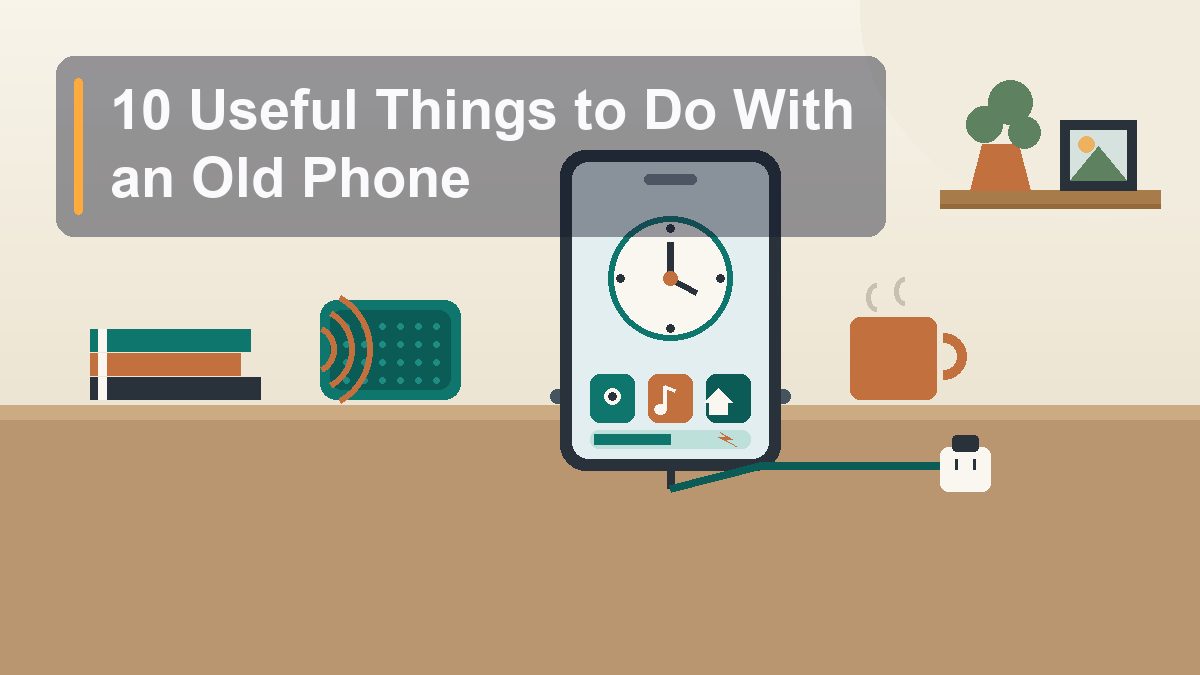
10 Genuinely Useful Things to Do With an Old Phone
Somewhere in your home is a drawer containing a perfectly good camera, GPS radio, music player, and touchscreen, all glued to a battery and abandoned because a newer one came along. That drawer is a waste. Here are ten second careers for the phone in it — plus the prep work that keeps them safe, and the honest point where recycling wins.
The average American upgrades phones every two to three years, which means the average American home contains at least one retired phone doing absolutely nothing. It sits in a kitchen drawer next to a dead pen and some rubber bands, holding its value at roughly zero and its usefulness — here’s the part people miss — at nearly full. A phone that felt too slow to be your daily driver is still a computer with a good camera, a sharp screen, Wi-Fi, GPS, and a battery. It doesn’t need to do everything anymore. It needs to do one thing, plugged in or charged occasionally, and it will do that one thing for years. The ten jobs below are ordered roughly by how much value they return for how little effort they take, and almost all of them run on Wi-Fi alone — no SIM card, no plan, no monthly anything.
First, Prep the Phone Properly
Ten minutes of setup before any of the ten jobs
Before an old phone gets a second career, it needs a clean break from its first one. Two goals: your accounts come off it, and whatever it becomes next shouldn’t be able to leak anything about you.
Back up anything you want, then sign out of everything. Photos, messages, notes — make sure they live on your new phone or in the cloud first. Then sign out of your accounts in the right order, because doing it wrong can brick the phone for its next owner (or next job). On an iPhone, go to Settings > [your name] > Find My and turn off Find My iPhone, then scroll to the bottom of that same Apple Account screen and sign out. This step matters: skipping it leaves Activation Lock on, and the phone will demand your password forever. On Android, go to Settings > Accounts (or Passwords, passkeys & accounts), remove your Google account and any Samsung/manufacturer account. Skipping that leaves Factory Reset Protection armed, which turns a wiped phone into a paperweight that only your password can revive.
Now factory reset it. On iPhone: Settings > General > Transfer or Reset iPhone > Erase All Content and Settings. On most Android phones: Settings > System > Reset options > Erase all data (factory reset) — Samsung tucks it under General management > Reset. Modern phones encrypt storage by default, so a factory reset effectively destroys your data rather than just hiding it. After the reset, set the phone up fresh as a “dumb” device: new or secondary account if you need one for app stores, no contacts synced, no email, no messages. For most of the jobs below, you want the phone to know as little about you as possible.
Check the battery and set a charging limit. A repurposed phone often lives plugged in 24/7, which is hard on lithium batteries — heat and sitting at 100% are what age them. On iPhone, check Settings > Battery > Battery Health & Charging; if maximum capacity is below about 80%, expect to keep the phone on a charger permanently or budget for a battery swap. iPhone 15 and newer can cap charging at 80% right in that menu; older iPhones have Optimized Battery Charging, which at least learns to pause at 80% overnight. Most Pixels and recent Samsung phones offer similar charge limits or adaptive charging in Settings > Battery. Turn it on. And a word about swollen batteries: if the back of the phone is bulging or the screen is being pushed up, skip this whole article and go straight to the recycling section — that’s not a project, that’s a hazard.
One more prep step people forget: keep it updated. A phone that’s stopped getting security updates is fine for offline jobs (music player, recipe screen) but a poor choice for anything internet-facing, like a security camera. Check the phone’s support status before assigning it a networked job.
1. A Security Camera or Pet Cam You Already Own
The highest-value second career, and the most popular
A dedicated indoor security camera costs $30 to $100 and then often wants a subscription. Your old phone has a better camera than most of them and is already paid for. Apps like Alfred (iOS and Android) turn two phones into a camera-and-viewer pair: the old phone mounts somewhere with a view — front door, back yard, the living room where the dog is definitely not on the couch — and your current phone watches the feed from anywhere. Motion detection, push alerts, two-way audio, and night modes are standard; the free tier covers the basics with ads, and paid tiers add longer recording history.
Setup is genuinely fifteen minutes. Install the app on both phones, sign into the same account, designate the old phone as the camera, and prop it where you want it — a cheap $10 gooseneck phone mount or even a stack of books with the phone leaned against a mug. Point it, plug it in permanently, and enable the app’s option to keep the screen dark while recording so it doesn’t glow all night. Two practical notes: Wi-Fi is mandatory and the camera phone will ignore your charge-limit wishes if the app keeps it busy, so give it airflow and don’t bury it under a cushion. And aim it at your own property — pointing a camera into a neighbor’s window is a fast way to become unpopular and, in some places, liable.
2. The Dedicated Music Player
A kitchen stereo, a gym iPod, a kid-safe jukebox
This is the job that requires almost nothing. Sign into Spotify, YouTube Music, Apple Music, or whatever you already pay for, download playlists over Wi-Fi for offline use, pair the phone with a Bluetooth speaker, and dock it on the counter. You now have a kitchen stereo that never gets interrupted by your actual phone ringing, a work-call notification, or you wandering out of Bluetooth range with the music source in your pocket.
The variations are where it gets good. Loaded with downloaded playlists and left in airplane mode, it’s a gym or running device with zero distractions and zero risk to your $1,000 daily phone if it hits the pavement. Given to a kid with only downloaded content and no browser (more on kid-locking below), it’s the iPod Touch Apple stopped making. And for anyone with a decent local music library, apps like Plex or a plain files-based player turn it into a hi-fi transport feeding a speaker or an old receiver with a cheap Bluetooth adapter. Delete everything except the music apps, turn off every notification, and enjoy the strangest feature of all: a phone that does one thing and never asks for your attention.
3. The Kitchen Recipe Screen
The counter appliance you’ll use every single day
Mount an old phone on the underside of a cabinet or prop it in a $12 stand, and you have the thing people buy $200 smart displays for: a recipe screen that survives floury hands. The setup details are what separate “useful” from “drawer again by March.” First, stop the screen from sleeping mid-recipe: on iPhone, Settings > Display & Brightness > Auto-Lock > Never (only sensible because this phone lives on a charger); on Android, Settings > Display > Screen timeout, or use the “keep screen on while charging” option in Developer options. Second, pick your recipe home: a recipe manager like Paprika that strips web recipes down to ingredients and steps, or just your browser with a handful of bookmarked sites. Third, set up voice control for messy hands — “Hey Siri” or “Hey Google” can set timers and read steps while yours are covered in chicken juice, which is the entire point.
While it’s docked there, the same screen doubles as the household whiteboard: a shared grocery list (AnyList, Google Keep, Apple Reminders shared lists) that everyone adds to from their own phones, and the family calendar on a stand. This is also the one job where an old, cracked, cosmetically wrecked phone is completely fine — it’s a kitchen tool now, and kitchen tools get splattered.
4. The Smart Home Remote on the Wall
One dashboard for the whole house, always in the same place
If your home has accumulated smart bulbs, a thermostat, a video doorbell, or a robot vacuum, you know the small daily friction of digging out your phone, finding the right app, and waiting for it to load — multiplied by everyone in the house doing the same. An old phone mounted by the front door or in the kitchen solves it permanently. Install the Google Home app, Apple Home, Amazon Alexa, or whatever ecosystem you run (power users: a Home Assistant dashboard in a browser is the deluxe version), log in, and pin the screen to that single app.
The result is a wall-mounted control panel: lights off when leaving, thermostat check, doorbell camera view, all in two taps. Android’s screen pinning (Settings > Security > App pinning) or iPhone’s Guided Access (Settings > Accessibility > Guided Access) locks the phone to that one app so it can’t wander. A slim adhesive wall mount or an old tablet-style stand does the mounting; a USB cable routed along the baseboard keeps it fed. The bonus nobody plans for: guests can turn the porch light on without being handed your personal phone like it’s a museum artifact.
5. The E-Reader and 6. The Bedside Clock
Two quiet jobs for the nightstand
An old phone is a legitimate e-reader, especially for library books. Install Libby (the public-library app — free with a library card from most US and Canadian libraries), plus the Kindle or Kobo app for anything you buy, and you have a pocket library that syncs reading position with every other device you own. It’s backlit, so it’s not a Kindle Paperwhite for hour-long sessions, but for twenty minutes in bed or a commute, the screen you already own beats the screen you haven’t bought. Dark mode and the warm “night shift” display setting make it easier on the eyes at night.
The same phone, plugged in on the nightstand, becomes the best alarm clock you’ve owned. iPhones on iOS 17 or later have StandBy: charge the phone on its side and it turns into a big, dim clock with widgets — genuinely handsome, and it auto-dims in a dark room. Android phones can run their clock app’s screensaver mode or any of the well-reviewed bedside clock apps. Either way, set up the alarm with an actually loud tone, enable Do Not Disturb on a schedule, and — this is the part that changes mornings — leave your real phone charging in another room. An old phone as an alarm clock can’t show you email at 6:04 a.m., which is a feature that has never been for sale at any price.
7. The Dash-Mounted GPS and 8. The Webcam
Two jobs that save your real phone for real life
The dedicated GPS unit. Remember when people bought Garmins? Your old phone is one. Download offline maps for your state or province in Google Maps (tap your profile picture > Offline maps) or install HERE WeGo, which was built for exactly this and can download entire regions for fully offline navigation. Mount the old phone on the dash with a $15 mount, run a charging cable from the car’s USB port or a 12V adapter, and navigate. No SIM needed for the maps themselves — GPS is a radio, not a subscription — though live traffic needs data, which your real phone’s hotspot can supply. The practical wins are real: your daily phone keeps its battery and its mount-free pocket, navigation never gets shoved aside by an incoming call, and if the dash phone gets stolen or cooked by a summer windshield, you lost a $0 phone.
The webcam. Laptop webcams remain mysteriously terrible in 2026, and a five-year-old phone camera beats nearly all of them. On the Apple side, Continuity Camera is built in — an iPhone running a recent iOS mounts on top of your Mac and works as a camera in FaceTime, Zoom, and Meet with zero extra software (it wants the same Apple Account on both devices, so this job suits a phone you’re keeping rather than wiping). For Windows or cross-platform setups, apps like Camo, DroidCam, or Elgato’s EpocCam bridge an iPhone or Android phone to your computer over USB or Wi-Fi, with free tiers that cover 720p and paid tiers for the fancy stuff. The 1080p-or-better jump in how you look on calls is immediate, and the phone earns its keep every workday.
9. The Kid Device and 10. The Emergency Phone
The locked-down hand-me-down and the glovebox insurance policy
The kid’s offline device. An old phone, wiped and loaded with downloaded shows, audiobooks, and games, is the device you can hand a six-year-old without the quiet dread. The locking-down is the whole craft, and both platforms have real tools. On iPhone: Screen Time (Settings > Screen Time) with a separate passcode can block Safari, the App Store, purchases, and explicit content; Guided Access can nail the phone to a single app for a car ride. On Android: Google Family Link manages a child’s account with app approvals and time limits, and Google’s Kids Space mode gives younger kids a walled garden of content. Keep it on Wi-Fi only, no SIM, no payment method attached, downloads only — and it becomes the road-trip hero that costs nothing when it’s inevitably dropped in a parking lot.
The 911-only emergency phone. Here’s a fact most people don’t know: in the US and Canada, any charged phone can call 911, even with no SIM card and no plan — carriers are required to connect emergency calls from any handset that can reach a tower. That makes a retired phone genuinely useful emergency equipment: charged, powered off, and stashed in the glovebox, the workshop, or the hiking pack. If your real phone is dead, lost, or broken in an emergency, the old one still reaches help. The maintenance is minimal — check the charge every couple of months, since a phone powered off still sips battery — and the etiquette is one rule: teach kids it’s a real emergency line, because 911 works from it even by accident. (For the glovebox role specifically, avoid extreme-temperature storage when you can — lithium batteries hate baking on a dashboard all summer.)
| Second career | What you need | Effort |
|---|---|---|
| Security / pet camera | Alfred or similar, mount, permanent charger, Wi-Fi | 15 min setup |
| Music player | Streaming app, downloaded playlists, Bluetooth speaker | 5 min |
| Kitchen recipe screen | Stand or cabinet mount, auto-lock off, recipe app | 15 min |
| Smart home remote | Google Home / Apple Home / Alexa app, wall mount | 20 min |
| E-reader | Libby (library card) + Kindle or Kobo app | 5 min |
| Bedside clock / alarm | Charger, StandBy (iOS) or clock app, Do Not Disturb | 5 min |
| Dash GPS | Offline maps, dash mount, car charging cable | 20 min |
| Webcam | Continuity Camera (Mac) or Camo / DroidCam / EpocCam | 15 min |
| Kid’s offline device | Screen Time or Family Link, downloaded content, no SIM | 30 min |
| 911-only emergency phone | Charge, power off, glovebox; check every few months | 2 min |
When to Recycle Instead
The honest exit, and how to do it right
Not every old phone deserves a second career, and pretending otherwise is how drawers fill up. Recycle when any of these is true: the battery is swollen (back cover bulging, screen lifting — non-negotiable, and don’t put it in the trash, because punctured lithium batteries are a genuine fire risk in garbage trucks); the battery is so degraded it dies in an hour and no plugged-in job fits your life; the phone is too old to run any current app you need for the job you had in mind; or the screen or charging port is broken and the repair costs more than the phone’s remaining usefulness. A phone with no viable job and no resale value isn’t a resource — it’s clutter with a charging port.
The recycling itself is easy and free. Before anything leaves your hands, do the full prep from the first section: sign out of accounts, then factory reset. Then pick a channel. Retail drop-off is simplest — Best Buy accepts phones for recycling at US and Canadian stores, and battery recyclers like Call2Recycle have thousands of drop-off points at hardware stores and libraries. Manufacturer take-back works too: Apple’s trade-in and recycling program accepts any device, and carriers run similar bins. If the phone still works fine and you’re not the repurposing type, donation beats recycling — shelters and community organizations often accept working phones, and some distribute them precisely because of that 911-without-a-plan trick. Whatever you choose, the goal is the same: the phone ends up as a working tool or as reclaimed materials, and not as drawer sediment next to the dead pen.
This article is educational and reflects general best practices for consumer devices. Menu paths refer to iOS 18/26-era and Android 15/16-era settings and may shift slightly by version and manufacturer. Sources referenced include Apple’s iPhone support documentation and Google’s Android support documentation. Product and app mentions are independent; no affiliate links or sponsored content. External links verified live at publication, August 2026.