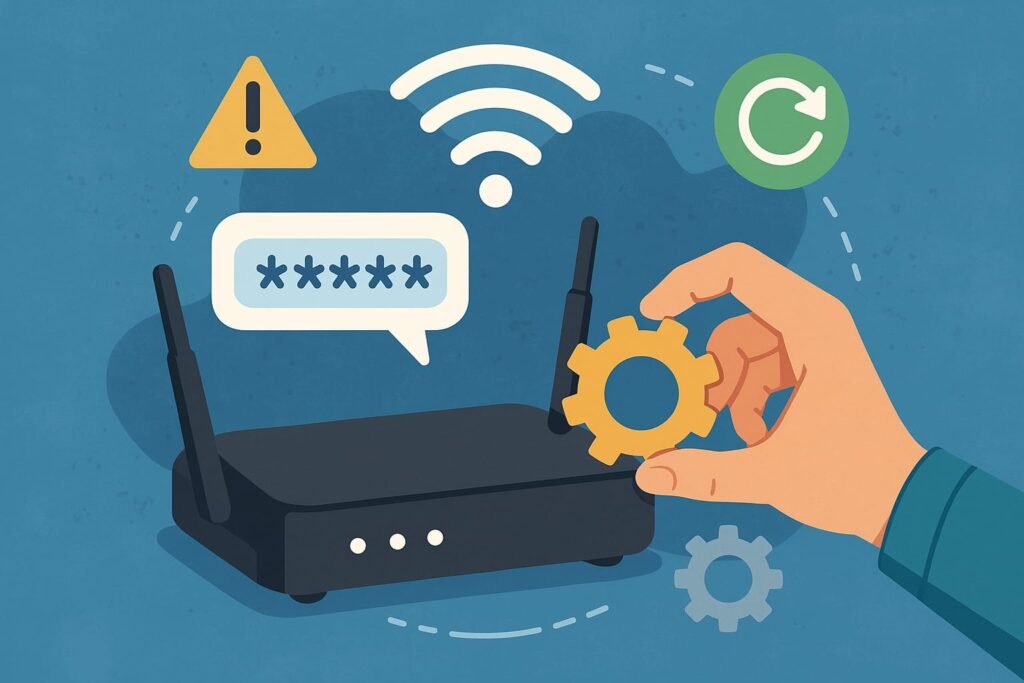
All it takes is the Ring app, a few minutes of your time, and a stable 2.4GHz WiFi connection. No need to remove the device from the wall.
| Item | Details |
|---|---|
| Ring App | Latest version installed on smartphone/tablet |
| WiFi Details | New network name (SSID) and password |
| Device Proximity | Be near the Ring device during setup |
| WiFi Band | Ensure 2.4GHz (not 5GHz) |
| Setup Mode Access | Access to setup button on the doorbell |
Step-by-Step: Changing WiFi on a Ring Doorbell
Step 1: Open the Ring App
Launch the Ring app on your phone. Ensure it’s updated to the latest version. This app is where you control and update your Ring devices.
Step 2: Select Your Device
From the dashboard, tap the menu icon (three horizontal lines). Go to “Devices,” then select your Ring doorbell.
Step 3: Tap Device Settings
Once inside the device view, tap “Device Settings.” You’ll see several options here. Choose “Device Health.”
Step 4: Tap “Change WiFi Network”
Scroll down and select “Change WiFi Network.” Follow the prompts to proceed.
Step 5: Enter Setup Mode
Physically go near your Ring doorbell. Hold the setup button until the light flashes. This means your device is in setup mode and ready to connect.
Step 6: Select New WiFi Network
The app will now show nearby WiFi networks. Pick your new one. Enter the correct password. Avoid using special characters like #, @, or $ in the password.
Step 7: Confirm the Connection
Once connected, the app will display a confirmation. Test the live view to verify everything works.
Things to Do Before You Start
- Write down your new WiFi name and password
- Update the Ring app if needed
- Ensure strong WiFi signal where the doorbell is mounted
- Check your router supports 2.4GHz (most Ring devices need this)
What to Do If Ring Doorbell Won’t Connect to WiFi
- Double-check WiFi password
- Reboot your router and phone
- Move router closer or use a range extender
- Power cycle the Ring device
- Reset the Ring device as a last resort
Can I Change Ring WiFi Remotely?
No. You must be physically near the Ring doorbell to change its network. It requires setup mode, which involves pressing a button on the unit.
Is It Necessary to Remove the Doorbell?
In most cases, no. As long as you can reach the setup button, you don’t need to uninstall your Ring device to change the WiFi network.
Will Changing WiFi Erase My Videos?
No. Your videos are stored in the cloud. Changing networks will not delete past recordings.
Using a Mobile Hotspot?
You can use a mobile hotspot, but stability and speed may vary. A stable home WiFi is better for long-term use.
Tips for Smooth Ring Doorbell WiFi Change
- Ensure signal strength of at least -60 dBm
- Avoid WiFi channels with congestion
- Stick to plain SSIDs and passwords
- Perform setup during off-peak internet hours
- Check compatibility at Ring Support
FAQs
Do I need to reset Ring doorbell after changing WiFi?
No. Just complete the WiFi update process and the device will continue working as before.
What WiFi speed is best for Ring doorbells?
A minimum of 2 Mbps upload speed is recommended for smooth operation.
Can two people access the same Ring doorbell?
Yes, use the Shared Users option in the Ring app to add other household members.
Is Ring doorbell weatherproof?
It’s weather-resistant, not waterproof. It can handle rain and dust, but don’t submerge it.