Google Contacts syncs across all devices linked to your account. If a contact disappears, the Google Contacts app can help. You need the app installed to recover deleted contacts. Below, we explain how to download the app and use two methods to restore contacts.
| Feature | Details |
|---|---|
| App Name | Google Contacts |
| Availability | Free on Google Play Store |
| Recovery Period | Up to 30 days for deleted contacts |
| Sync Capability | Syncs with all Android devices signed into the same Google account |
| Methods | Individual contact recovery or undo changes for a specific period |
| Reference Link | Google Contacts Help |
Part 1: Download the Google Contacts App
To recover deleted contacts, install the Google Contacts app. Follow these steps:
- Open the Gmail app on your Android phone.
- Tap the three horizontal lines next to the search bar.
- Scroll to “Contacts” under Google apps.
- Tap “Contacts” to go to the Google Play Store.
- Download and install the Google Contacts app.
Once installed, the app shows all contacts in your Google account. You can now restore deleted contacts.
Part 2: Recover Specific Deleted Contacts
This method restores one or two contacts deleted within 30 days. The app stores deleted contacts in a Trash folder. Here’s how:
- Open the Google Contacts app.
- Tap the three horizontal lines beside the search bar.
- Select “Trash” to view deleted contacts.
- Find the contact you want to restore.
- Tap the contact and choose “Recover.”
- Avoid selecting “Delete forever.”
- Repeat for other contacts if needed.
- Select multiple contacts to recover them at once.
After recovery, contacts sync to your phone’s default contacts app. Be careful not to delete contacts permanently.
Part 3: Undo Changes to Restore Contacts
This method restores your contact list to a previous state. It undoes all changes in a chosen time frame. Use it if you haven’t added new contacts recently. Follow these steps:
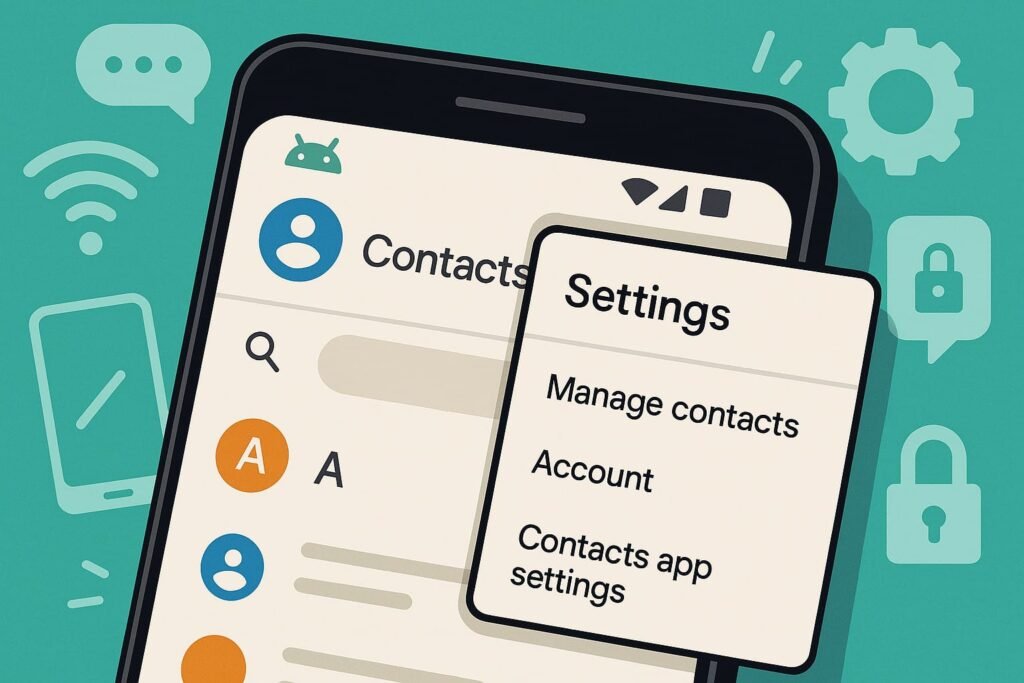
- Open the Google Contacts app.
- Tap the three horizontal lines.
- Go to “Settings.”
- Scroll to “Undo changes.”
- Pick a time frame: 10 minutes, 1 hour, 24 hours, 1 week, or custom (up to 30 days).
- Choose “Custom” for deletions older than a week.
- Set the period within 30 days.
- Tap “Confirm.”
- Wait five minutes for changes to apply.
This resets your contact list to its earlier state. Deleted contacts return, but new contacts added in that period disappear.
Export Contacts to Your Google Account
Export contacts from your phone or SIM to your Google account for safety. This ensures recovery if your device is lost. Here’s how:
- Open your phone’s default Contacts app.
- Tap the three horizontal lines (Menu).
- Select “Manage contacts” or “Settings.”
- Choose “Import or export contacts.”
- Select the SIM or device as the source.
- Choose your Google account as the destination.
- Confirm to export.
For some Android devices:
- Go to “Settings” in the Contacts app.
- Select “Export.”
- Choose the source (device or SIM).
- Select your Google account.
- Wait for the export to finish.
Exported contacts sync to your Google account for easy recovery.
Restore Contacts from Google Drive
If your phone is lost or stolen, restore contacts to a new device. Follow these steps:
- Set up your new Android phone.
- Sign in to your Google account.
- Download the Google Contacts app.
- Let the app sync automatically.
If sync doesn’t happen:
- Open your phone’s Settings app.
- Tap “Google.”
- Select “Set up & restore.”
- Tap “Restore contacts.”
- Choose the Google account.
- Select the device to copy contacts to.
- Tap “Restore” and wait for “Contacts restored.”
Your phone skips duplicates, restoring only new contacts.
FAQs
Can I Restore Google Contacts from a Year Ago?
No. Google Contacts keeps deleted contacts in Trash for 30 days. After that, recovery isn’t possible.
Can I Recover Phone Contacts from a Google Account?
Only contacts saved to your Google account are recoverable. Phone or SIM contacts depend on your device’s backup. Export them to Google for future recovery.
Why Use Google Contacts?
Google Contacts syncs across devices and simplifies recovery. It eliminates local backup needs. Export contacts to Google Drive for protection.
Tips for Managing Google Contacts
- Check sync settings in your phone’s Google account.
- Export phone or SIM contacts to Google regularly.
- Verify contacts appear in the Google Contacts app.
- Avoid “Delete forever” in the Trash folder.
With these steps, you can restore Google Contacts easily. Protect your phonebook and keep your data safe across devices. If you enjoyed reading drop a comment and bookmark our website.