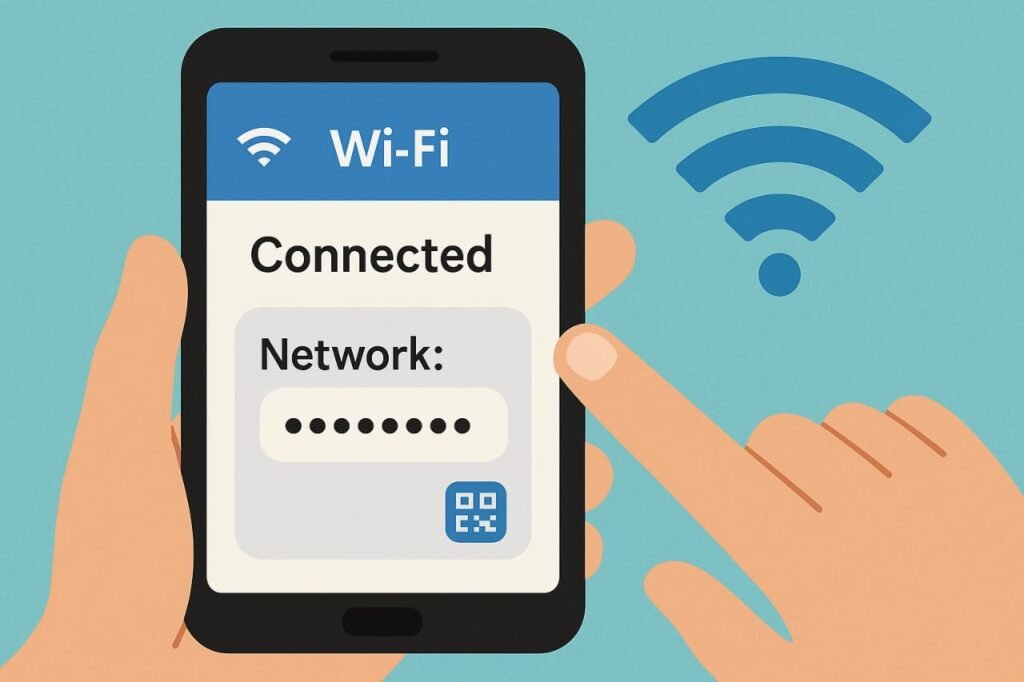
Want a Wi-Fi password from your mobile? Maybe your laptop needs to connect. Or a friend’s begging for the code. This guide makes it easy!
Your phone saves Wi-Fi passwords. It links you up without a fuss. But sharing that code? Tricky—until now. I’ve retrieved mine to help my sister join my network. Stick with me for simple steps.
| Method | Platform | Difficulty | Requirements |
|---|---|---|---|
| Wi-Fi Share via QR Code | Android 10+ | Easy | No root, biometric/PIN verification |
| Root File Access | Android 9 & below | Advanced | Rooted phone, file explorer or app |
| Hotspot Settings | Any Android | Easy | Access to hotspot device |
| Router Admin | Any mobile | Moderate | Router app or admin access |
Source: Adapted from Google Android Support for accuracy and platform details.
Finding Wi-Fi Passwords on Android 10 and Later
Android 10 brought a game-changer. The “Wi-Fi Share” feature saves the day. You get a QR code in seconds. Here’s my go-to way:
- Grab your phone. Open Settings.
- Tap Network & Internet or Connections. Hit Wi-Fi next.
- See your network? It’s up top. Or tap “Saved Networks” for others.
- Choose one you need.
- Tap Share. Spot the QR code icon.
- Prove it’s you—fingerprint or PIN works.
- A QR code shows up. Some phones list the password too. Mine didn’t, so I scanned it with Google Lens.
My trick? Snap a screenshot. My buddy scanned it and joined my Wi-Fi in a flash. Works great on Android 10, 11, or newer!
Checking Wi-Fi Passwords on Android 9 and Older
Got an older phone? It’s a challenge. Android 9 or earlier needs grit. Rooting might be your path. I’ve seen friends brick phones trying this—be warned!
- Rooted your device? Grab a password viewer app from the Play Store.
- Open it. Grant root access.
- It pulls up saved codes fast.
- Like DIY? Use a root file explorer.
- Head to /data/misc/wifi. Hunt for “wpa_supplicant.conf”.
- Peek inside. Network names and passwords are there.
Big note: This shows only your connected networks. Skip rooting if you’re new to it. Safety first!
How to Find a Hotspot Password on Another Device
Your friend’s hotspot is on. They forgot the code. No sweat! I helped a cousin this way. Check their phone like this:
- Open Settings on their device.
- Find Network & Internet or Connections.
- Tap Mobile Hotspot & Tethering.
- Choose Wi-Fi Hotspot.
- Hit Hotspot Settings.
- Check Hotspot Password. There’s the key!
- Type it in. You’re online.
Got a router instead? Grab its app. I use my Netgear one. Go to Settings, then Wi-Fi Security for the code.
Are Wi-Fi Password Viewer Apps Safe?
Apps claim to show passwords. Tempting! I’ve checked a few. Many need root access. Some sketchy ones worry me—malware’s a risk. Pick apps with solid reviews. Better yet, use Android’s tools. No app cracks new networks. Stay safe!
What If You Can’t Find the Password?
Stuck? Android 10 and up is your friend—try the QR code. I struggled once, then checked my router’s app. Look at the label too. No access? Ask the owner. I did that at a café. Without it, you’re stuck. Keep it honest!
Tips for Managing Wi-Fi Passwords
Make Wi-Fi a breeze. My favorite hacks:
- Snap QR codes. Tuck them in a secure folder.
- Swap weak codes. Your router app does it.
- Save passwords. I use LastPass or a notebook.
- Update your phone. New Android versions rock.
You’re ready! Grab those mobile passwords fast.
Frequently Asked Questions
How Do I Find My Wi-Fi Password on My Phone?
Got Android 10 or later? Open Settings. Tap Network & Internet, then Wi-Fi. Pick your network. Hit Share. Use a fingerprint or PIN. Check the password or scan the QR code.
Can I See Saved Wi-Fi Passwords on Android?
You bet! Android 10+ has it easy. Go to Settings. Try Wi-Fi Share for a QR code. Older phones need root and an app. I stick to the simple way!
How to Find Wi-Fi Password on Mobile Without Root?
No root, no problem. On Android 10+, open Settings. Tap Wi-Fi. Select a network. Hit Share. Verify yourself. Password’s there or in a QR code.
Is It Safe to Use Wi-Fi Password Viewer Apps?
Tricky call. Rooted phones can try trusted apps. I check reviews first. Shady ones risk data. They skip new networks. Use Android’s features instead!