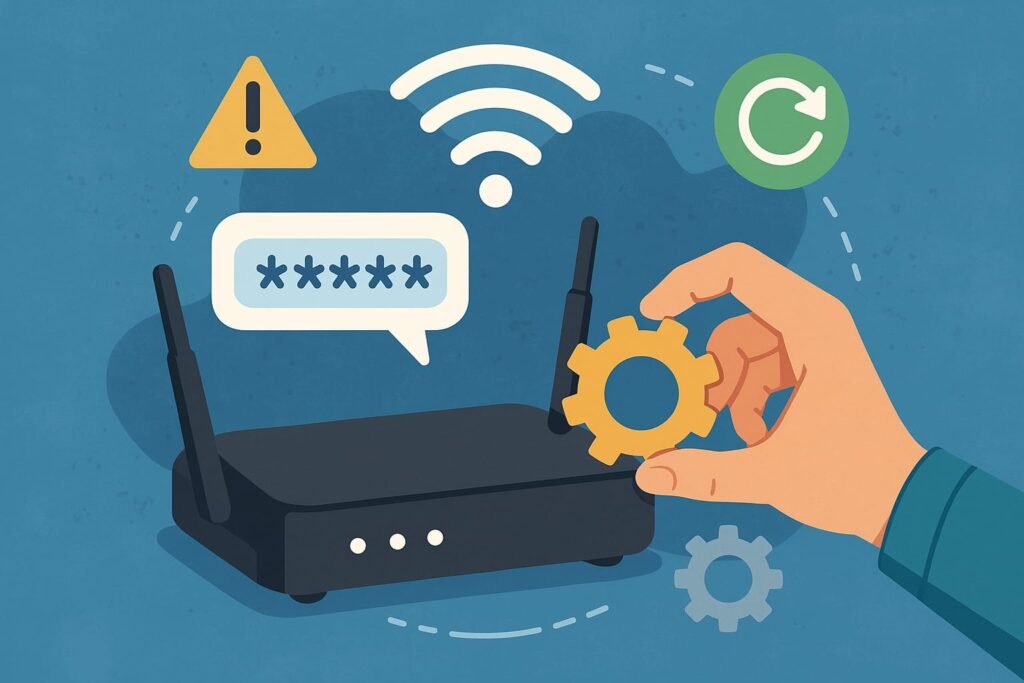
Last week, my neighbor in Nairobi, Sarah, called me in a panic. Her WiFi was crawling, and she suspected her network was being hijacked by freeloaders. After a quick check, we discovered her router still had the default password—a rookie mistake that left her network vulnerable. In just 15 minutes, we changed her WiFi router password, boosted her security, and got her internet running smoothly again. If you’re wondering how to change WiFi router password to protect your network, this guide is for you. Whether you’re a Kenyan homeowner, student, or small business owner, I’ll walk you through the process with clear steps, practical tips, and insights to keep your WiFi safe.
Why Changing Your WiFi Router Password Matters
Your WiFi router password is the first line of defense against unauthorized access. In Kenya, where internet usage has surged—with 51.3 million internet users in 2024—unsecured networks are prime targets for hackers, neighbors, or even curious kids. A weak or default password can lead to:
- Slow Internet: Too many devices hogging your bandwidth.
- Data Theft: Hackers accessing sensitive information like bank details.
- Malware Risks: Intruders installing malicious software on your network.
Changing your password regularly ensures your network stays secure and performs optimally. Plus, it’s a simple task that takes less than 10 minutes once you know the steps.
Step-by-Step Guide: How to Change WiFi Router Password
Here’s a universal guide to changing your WiFi router password, adaptable to most router brands like TP-Link, D-Link, Huawei, or ZTE, commonly used in Kenya. Follow these steps, and you’ll have a secure network in no time.
Step 1: Access Your Router’s Admin Panel
Every router has a web-based admin panel where you can manage settings. To access it:
- Connect to Your WiFi: Ensure your device (phone, laptop, or tablet) is connected to the router’s WiFi network.
- Find Your Router’s IP Address: This is usually printed on the router’s label (e.g., 192.168.0.1 or 192.168.1.1). Alternatively:
- On Windows, open Command Prompt, type
ipconfig, and look for the “Default Gateway.” - On Mac, go to System Preferences > Network > WiFi > Advanced > TCP/IP tab.
- On Android/iOS, check WiFi settings for “Router” or “Gateway.”
- On Windows, open Command Prompt, type
- Open a Browser: Enter the IP address in the address bar (e.g., http://192.168.0.1) and press Enter.
- Log In: Use the admin username and password, often found on the router’s label (e.g., “admin/admin” or “admin/password”). If you’ve changed it before, use your custom credentials.
Pro Tip: If you can’t find the IP or login details, check the router’s manual or visit the manufacturer’s website (e.g., TP-Link Support).
Step 2: Navigate to the WiFi Settings
Once logged in, the admin panel’s interface varies by router brand, but most follow a similar structure. Look for sections labeled:
- Wireless Settings
- WiFi Setup
- Network Settings
For example:
- TP-Link: Go to “Wireless” > “Wireless Security.”
- Huawei: Navigate to “Home Network” > “WiFi Settings.”
- ZTE: Find “WLAN” > “Basic Settings.”
If you’re unsure, explore the menu or use the search bar in the admin panel (available on newer models).
Step 3: Change Your WiFi Password
In the WiFi settings, you’ll see options to edit your network name (SSID) and password. Focus on the password field:
- Select Security Type: Choose WPA2-PSK or WPA3 (if available) for optimal security. Avoid WEP—it’s outdated and easily hacked.
- Enter a New Password: Create a strong password (12+ characters, mixing letters, numbers, and symbols). For example, “K3nyaNet2025!” is secure and memorable.
- Save Changes: Click “Save,” “Apply,” or “OK.” Your router may restart, temporarily disconnecting devices.
Avoid using local slang or predictable phrases like “HakunaMatata” as passwords. Hackers often target culturally relevant terms.
Step 4: Reconnect Your Devices
After saving, your devices will disconnect from the WiFi. Reconnect each one by:
- Selecting your WiFi network (SSID) on your device.
- Entering the new password.
- Testing the connection by loading a website or streaming a video.
Time-Saver: If you have many devices, write down the new password or save it in a secure password manager like LastPass.
Step 5: Verify and Secure Your Router
To ensure everything works:
- Test Internet Speed: Use a tool like Fast.com to confirm your connection is stable.
- Update Admin Password: If your router still uses the default admin password (e.g., “admin”), change it in the “System” or “Administration” tab to prevent unauthorized access.
- Enable Guest Network: For visitors, set up a separate guest network to keep your main network secure. Most routers, like D-Link’s models, support this feature.
Common Router Brands in Kenya and Their Specific Steps
Kenya’s ISP market, dominated by providers like Safaricom, Zuku, and Airtel, often supplies branded routers. Here’s how to change WiFi router passwords for popular models:
| Router Brand | Default IP | Default Login | Password Change Path |
|---|---|---|---|
| TP-Link | 192.168.0.1 | admin/admin | Wireless > Wireless Security > WPA-PSK Password |
| Huawei | 192.168.3.1 | admin/admin | Home Network > WiFi Settings > Password |
| ZTE | 192.168.1.1 | admin/admin | WLAN > Basic > WPA Key |
| D-Link | 192.168.0.1 | admin/(blank) | Setup > Wireless Settings > Manual Setup > Password |
Note: If your ISP provided the router (e.g., Safaricom’s Huawei B310), check the device or contact customer support for custom login details.
Troubleshooting Common Issues
Even with clear steps, things can go wrong. Here are solutions to frequent problems:
- Can’t Access Admin Panel: Ensure you’re connected to the router’s WiFi, not mobile data. Double-check the IP address or try resetting the router (press the reset button for 10 seconds).
- Forgot Admin Password: Perform a factory reset, but note this erases all settings. You’ll need to set up the WiFi from scratch.
- Devices Won’t Connect: Confirm you’re entering the new password correctly. If issues persist, restart your router and devices.
- Slow Internet After Change: Check for interference (e.g., microwaves, cordless phones) or update your router’s firmware via the admin panel’s “System” tab.
For persistent issues, contact your ISP or check forums like TechRadar’s networking section.
Unique Tips for Kenyan Users
Living in Kenya, I’ve learned a few tricks to make WiFi management easier in our unique context:
- Power Backup: Frequent power outages can disrupt router settings. Use a UPS or power bank to keep your router online during blackouts.
- ISP Support: Safaricom and Zuku offer remote assistance for their routers. Call their helplines (e.g., Safaricom: 100) for quick setup guidance.
- Local Threats: With cybercrime rising in Kenya, change your password every 3–6 months to stay ahead of hackers.
- Community Sharing: In estates or hostels, neighbors often share WiFi. Use a guest network or limit connected devices in your router settings to avoid bandwidth theft.
Why Default Passwords Are a No-Go
Most routers come with default passwords like “admin” or “12345678.” In Kenya, where affordable routers are popular, many users skip changing these, assuming they’re safe. Big mistake. A 2024 cybersecurity report noted that default credentials are the top entry point for IoT attacks. Hackers can:
- Access your router to monitor traffic.
- Redirect you to malicious sites.
- Lock you out of your own network.
When I helped Sarah, her ZTE router still had “admin” as the password. A quick scan using a tool like WiFi Analyzer revealed multiple unknown devices connected. Changing her password and enabling WPA3 fixed the issue instantly.
Router Password Change Process
| Step | Action | Visual Cue |
|---|---|---|
| Access Admin Panel | Enter IP in browser | Screenshot of browser with 192.168.0.1 |
| Log In | Input admin credentials | Image of router label with default login |
| Change Password | Update WiFi settings | Screenshot of WiFi settings page |
| Save & Reconnect | Apply changes, reconnect devices | Icon of devices connecting to WiFi |
Note: For visuals, check your router’s manual or online guides on sites like CNET.
Keeping Your WiFi Secure Long-Term
Changing your password is just the start. To maintain a secure network:
- Update Firmware Regularly: Check for updates in your router’s admin panel to patch security vulnerabilities.
- Monitor Connected Devices: Use your router’s “Connected Devices” tab to spot unfamiliar users.
- Use a VPN: For extra protection, especially on public WiFi, consider a VPN like NordVPN.
- Disable WPS: WiFi Protected Setup (WPS) is convenient but vulnerable to brute-force attacks. Turn it off in your router settings.
Conclusion: Take Control of Your WiFi Today
Changing your WiFi router password is a quick, powerful way to secure your network and enjoy faster, safer internet. Whether you’re streaming on Netflix, working from home in Nairobi, or studying at a Kenyan university, a secure WiFi network is non-negotiable. Follow the steps above, tailor them to your router, and you’ll be protected in minutes.
Have you changed your WiFi password recently? Share your experience in the comments or ask for help if you’re stuck! For more tech tips, explore our guides on optimizing WiFi speed or securing smart home devices. Stay safe online, and don’t let hackers steal your bandwidth!