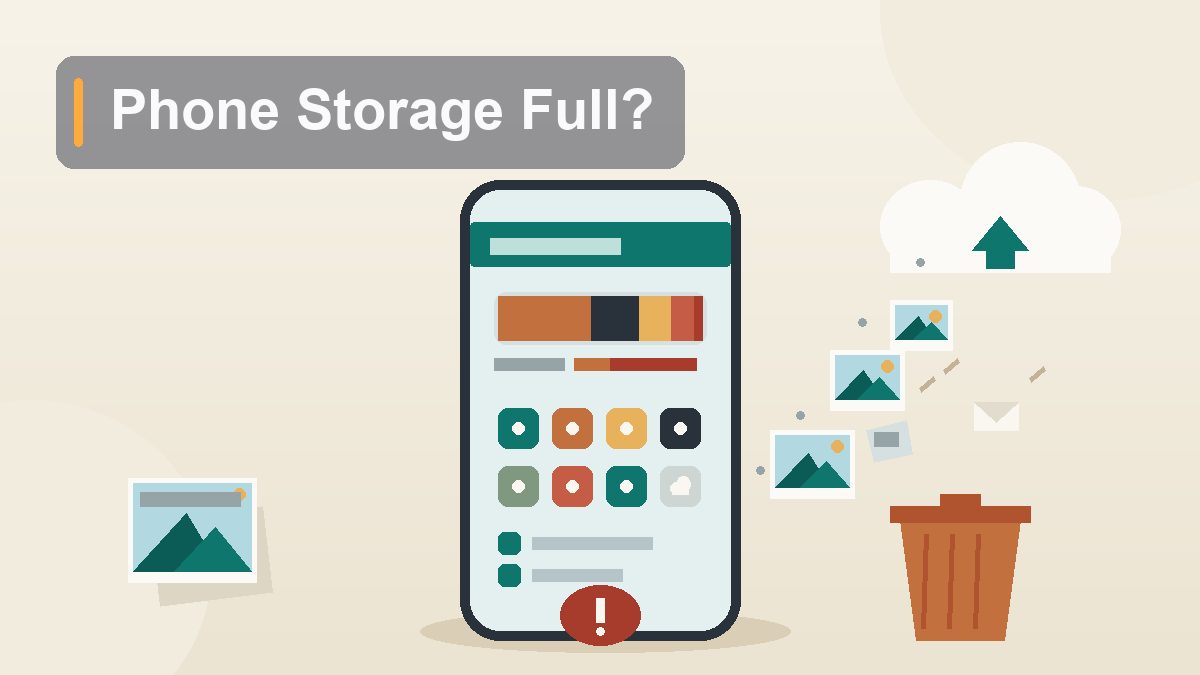
Phone Storage Full? How to Free Up Space Without Losing Anything You Care About
The “Storage Almost Full” warning always arrives at the worst possible moment — mid-concert, mid-vacation, mid-video-of-the-dog-doing-something-incredible. The good news: most of what’s eating your phone isn’t precious, and the precious part doesn’t have to live on the phone at all.
It happens like clockwork. Your kid scores a goal, or the sunset does something unreasonable, or your dog finally catches his own tail, and you raise the phone to capture it — and the phone says no. “Storage Almost Full.” Cannot take photo. So you stand there, deleting screenshots of parking spots from 2023 in a panic while the moment evaporates. Here’s the thing about a full phone: it didn’t fill up overnight, and it didn’t fill up with the stuff you love. It filled up with invisible bulk — app caches nobody asked for, message attachments from group chats you muted two years ago, offline playlists for a road trip that ended in March, and a mysterious blob called “System Data” that behaves like a junk drawer with ambitions. The rescue takes about an hour, costs nothing, and — done right — deletes nothing you’d miss. This is the whole operation, in the order that frees the most space with the least regret.
First, Find Out Where the Space Actually Went
Five minutes of reconnaissance before you touch anything
Deleting things at random is how people lose the one video they cared about while keeping forty gigabytes of junk. Both phone platforms have a built-in storage map that shows exactly what’s holding what, and reading it first turns the cleanup from guesswork into a checklist.
On an iPhone, go to Settings > General > iPhone Storage. Wait for the colored bar to finish calculating — it takes a few seconds on a full phone, because inventorying your bad decisions is real work. You’ll see the breakdown by category (Photos, Apps, Messages, Media, System Data), followed by a list of every app sorted by how much it’s consuming, and — this is the part people scroll past — a set of recommendations at the top, like “Review Large Attachments” or “Offload Unused Apps,” with the potential savings written right next to them. Apple’s official walkthrough of this screen lives on Apple’s iPhone support site if you want screenshots to follow along.
On Android, the path varies slightly by manufacturer, but it’s Settings > Storage on most phones (on a Samsung, Settings > Battery and device care > Storage). You’ll get the same category breakdown, plus — on Pixels and many other phones — a shortcut into the Files by Google app, whose “Clean” tab is genuinely good at surfacing junk files, duplicate photos, and large downloads. The exact menu names on your model are on Google’s Android help site.
Two numbers to note before you start: your total free space right now, and the top three offenders in the list. You’re aiming to free at least 10–15% of total capacity — on a 128 GB phone, that’s 13 to 19 GB — because phones genuinely slow down and updates start failing when free space drops below a few gigabytes. The cleanup below routinely finds 20 to 40 GB on a phone that’s never been cleaned. Write your starting number down; the end-of-day comparison is satisfying.
Photos and Videos: The 800-Pound Gorilla
On most phones, this one category is half the problem
Check almost anyone’s storage map and the biggest bar is photos and videos — often 40, 60, even 100+ GB. This is not because people take too many photos. It’s because modern phone cameras produce enormous files and nobody ever throws anything away. A single photo runs 2 to 5 MB, which is manageable. But a minute of 4K video is roughly 300 to 400 MB — meaning the eleven-minute video of a school concert you watched once is holding the same space as about 1,500 photos. Videos are where the gigabytes live.
Before touching the library, do a quick surgical pass on the worst offenders, because a handful of deletions here can free more than everything else in this article combined:
- The accidental videos. The 4-minute clip of your pocket, the 90 seconds of ceiling from when you thought you were taking a photo. Sort your gallery by video or search “videos” in the Photos app and scan by duration — anything over two minutes deserves a verdict.
- Burst sequences. You held the shutter a half-second too long and now own forty nearly identical frames of a skateboard trick. Keep one, delete thirty-nine.
- Screenshots. Directions to a restaurant that closed, a boarding pass from 2024, a text exchange you needed for exactly one afternoon. Both iPhone and Android galleries have a Screenshots folder; mass-delete with a light heart.
- WhatsApp and other auto-saved media. Many chat apps save every photo and video anyone sends you straight into your gallery. Check your gallery for a WhatsApp folder — it is frequently several gigabytes of other people’s memes.
Then empty the trash. This is the step everyone forgets: deleted photos go to a Recently Deleted album where they sit for 30 days, still occupying space. On iPhone: Photos > Albums > Recently Deleted > Delete All. On Google Photos: Library > Trash > Empty trash. Skipping this is like taking the garbage to the curb and then bringing it back inside.
The Photo Fix: Sync Up, Then Slim Down
Keep every photo, lose the weight
Here’s the strategic move that ends the photo problem permanently instead of annually: let the cloud hold the originals and let your phone keep lightweight versions. You lose nothing — every photo stays visible and shareable in your gallery — but the phone stops carrying forty gigabytes of full-resolution files it almost never needs.
On iPhone, the mechanism is iCloud Photos with Optimize iPhone Storage. Turn on iCloud Photos (Settings > your name > iCloud > Photos), then select Optimize iPhone Storage instead of “Download and Keep Originals.” From then on, the full-resolution originals live in iCloud, and the phone keeps smaller versions locally, swapping in originals only when you actually open or edit something. On a phone with a large library, this routinely converts 50 GB of local photos into 5 to 10 GB of placeholders. The free iCloud tier is 5 GB, which your library almost certainly exceeds; the 50 GB tier runs about $1 a month and 200 GB about $3 — among the cheaper peace-of-mind subscriptions in tech.
On Android, the equivalent is Google Photos. Turn on backup in the Google Photos app (tap your profile picture > Photos settings > Backup), let it finish uploading — overnight on Wi-Fi for a big library — then use the built-in “Free up space” tool (profile picture > “Free up space”), which removes the local copies of everything safely backed up, in one tap. Google’s free tier is 15 GB shared with Gmail and Drive; beyond that, plans start around $2 a month for 100 GB.
Two honest cautions before you flip these switches. First, wait for the sync to genuinely finish before deleting or freeing anything — both apps show upload progress, and “most of it” is not a completion state. Second, understand that this is sync, which means deletions propagate: delete a photo from the gallery and it leaves the cloud too. That’s fine for cleanup (it’s the point), but it means the cloud copy is a mirror, not an archive. If your photos are irreplaceable — and they are — keep a true backup somewhere as well, whether that’s a second service or an occasional export to a computer or drive.
Offload or Delete? The App Triage
The distinction that saves your data while ditching the bloat
Scroll down to the app list in your storage settings and two things will jump out: apps you forgot you had, and apps whose size has quietly ballooned far past what you downloaded. A social app installed at 300 MB can swell past 3 GB on cached videos alone. Both problems have the same starting question: do I actually use this?
The storage list shows “Last Used” dates on iPhone, and they are brutal in their honesty. Anything untouched for six months is a candidate. Now the key distinction:
Offloading (iPhone) removes the app itself — the program — but keeps its documents and data on your phone. The icon stays on your home screen with a small cloud symbol; tap it months later and the app reinstalls and picks up where it left off, login and files intact. This is the right choice for the airline app you need twice a year, the tax app you need once, the smart-home app for the lightbulb in the guest room. You can offload apps one by one from the iPhone Storage list, or turn on Offload Unused Apps and let the phone do it automatically — it’s the single most painless setting in this entire article.
Deleting removes the app and its local data. Use it for apps you’re truly done with: the game you finished, the retailer you no longer shop at, the three camera apps from the year you were going to get into photography. Don’t fear it — your account and anything stored server-side (photos, playlists, progress that syncs) survives deletion, and the app is a free re-download away. What deletion erases is the local cache, which is usually the fat part anyway.
Android has its own versions of both moves. In the Play Store, tap your profile > Manage apps & device to sort apps by size and last use. Newer Android versions can archive unused apps — same idea as offloading, shrinking the app dramatically while preserving your data — and the Play Store can do it automatically when storage runs low. And for cache-bloated apps you use daily (social media, streaming), Settings > Apps > [app name] > Storage > Clear cache removes the temporary bulk without touching your login. Just don’t hit “Clear storage”/”Clear data” unless you mean it — that’s the full factory reset for that app.
The Message Attachment Attic
Every photo anyone has ever texted you is still in there
Here’s a category that surprises everyone: text messages. Not the texts — those are nothing. The attachments. Every photo, video, GIF, voice memo, and 30-second clip of someone’s boat that anyone has ever sent you in iMessage, WhatsApp, or any other chat app is stored on your phone, and on a phone that’s been in a lively family group chat for three years, this pile routinely reaches 5 to 15 GB. You have never once scrolled back to find any of it.
On iPhone, go to Settings > General > iPhone Storage > Messages. You’ll get a breakdown — Photos, Videos, GIFs and Stickers, Other — with a “Review Large Attachments” option that lists every big file, biggest first, ready to swipe-delete. Ten minutes here usually clears several gigabytes, and it’s almost entirely videos you watched once in 2024.
The companion setting ends the problem going forward: Settings > Apps > Messages > Keep Messages (Settings > Messages on older iOS versions) — change it from “Forever” to 1 Year or 30 Days. “Forever” is a default almost nobody chose on purpose. One year keeps anything you’d realistically scroll back to; thirty days is the aggressive setting for people whose group chats are basically television.
On WhatsApp — the heavyweight attachment hoarder on many phones — the tool is built in: Settings > Storage and Data > Manage Storage, which sorts everything by size and even flags “Forwarded many times” files, which is a polite way of saying “memes.” Other chat apps have their own equivalents, usually under a storage or data-usage setting. And check the app’s “save to gallery” behavior while you’re in there — if every incoming photo is also being copied into your camera roll, you’re storing the same meme twice.
Downloads and the “Just in Case” Pile
Files you saved for a moment that has passed
Every phone accumulates a sediment of deliberate downloads — things you saved on purpose, for a reason, that stopped being a reason months ago. None of them announce themselves. All of them are pure recoverable space.
The Downloads folder. On iPhone, Safari downloads land in the Files app (Files > Browse > Downloads, or iCloud Drive > Downloads): PDFs of menus, insurance cards, that 200-page homeowner’s manual. On Android, Files by Google > Downloads shows the same museum of one-time needs. Delete freely — anything that mattered can be re-downloaded, and the rest never mattered.
Offline maps. Google Maps lets you download entire regions for offline navigation (profile picture > Offline maps), and they’re excellent — each one is also 200 MB to over 1 GB. If you downloaded the greater Phoenix area for a trip last spring, Phoenix is still in your pocket. Delete the trips that ended; keep the one for your home area if you like the insurance.
Streaming downloads. Spotify, Apple Music, Netflix, YouTube Premium, podcast apps — all of them download content for offline use, and all of them keep it until told otherwise. Spotify’s offline playlists can run several gigabytes; a couple of downloaded Netflix seasons can match that. Check each app’s Downloads or Offline section and evict what you’re not actively listening to or watching. Podcast apps deserve special mention: many default to auto-downloading every new episode of every show you follow, which means your phone may be warehousing forty hours of podcasts you have not the slightest intention of hearing.
Browser and Streaming Caches
The invisible bulk that serves no one
Caches are files apps keep to load things faster next time — images from websites, video thumbnails, map tiles. In theory they’re self-managing. In practice, on a phone that’s two years old, some caches are hoarding gigabytes of “just in case” for websites you will never visit again.
Safari on iPhone: Settings > Apps > Safari > Clear History and Website Data. This clears the cache, cookies, and history in one move — the side effect is being logged out of websites, which is a minor nuisance, not a loss. Chrome (on either platform): the app’s settings > Privacy > Clear browsing data > Cached images and files. On Android you can also clear Chrome’s cache via Settings > Apps > Chrome > Storage without touching your passwords or logins.
The bigger cache hoarders are social and streaming apps, which on iPhone offer no “clear cache” button at all — by design, which is a generous word for it. The workaround is the offload trick from earlier: offloading and reinstalling an app (or deleting and reinstalling, if you’re logged in via an account) resets its cache to zero. If Instagram or TikTok shows 2 GB of “Documents & Data” in your storage list, that number is cache, and a reinstall is the only broom that reaches it. You’ll log back in; you’ll lose nothing that wasn’t temporary.
The “System Data” Mystery
The junk drawer at the bottom of the storage list
At the bottom of the iPhone storage bar sits a gray segment labeled System Data (called “Other” in older iOS versions, and similar to “System” on Android), and on some phones it swells to 20, 30, even 50 GB with no explanation offered. It’s the most-googled line on the whole screen. Here’s what it actually is: caches, logs, temporary files, downloaded update packages, Siri voices, fonts, streaming buffers — the operating system’s working papers. None of it is your stuff. All of it is, in theory, disposable.
You can’t delete System Data directly — there’s no button, and any app claiming otherwise is selling something. But you can shrink it, in escalating order:
Restart the phone. A full power-off-and-on clears a pile of temporary files and caches. It rarely fixes a giant System Data blob by itself, but it’s free and takes ninety seconds.
Update the OS. System updates replace and re-index system files, and they frequently flush stale caches along the way. Ironic, since a full phone often can’t update (updates need free space to unpack — yet another reason to keep 10 GB free), which is why you do the other cleanups first.
Clear the biggest caches. Safari’s website data and message attachments both feed the blob; the sections above already handled them.
The nuclear option: backup, erase, restore. If System Data is still enormous after all that, the definitive fix is to make an encrypted backup (to iCloud or a computer), erase the phone, and restore from the backup. Your apps, photos, messages, and settings come back; the accumulated system crud does not. It takes an afternoon and sounds terrifying, but it’s a well-worn official procedure — and on phones with a genuinely swollen blob, it’s the difference between nibbling at the problem and ending it.
The Cheat Sheet: Match the Hog to the Fix
Where your gigabytes actually went
| What’s full | Typical size on a neglected phone | The fix |
|---|---|---|
| Photos & videos | 30–100+ GB | Cloud sync + optimize storage; cull videos, bursts, screenshots; empty Recently Deleted |
| Apps & their data | 10–40 GB | Offload/archive unused apps; reinstall cache-bloated social apps |
| Message attachments | 3–15 GB | Review large attachments; set Keep Messages to 1 year |
| Offline content (maps, music, shows, podcasts) | 2–15 GB | Delete ended trips and finished seasons; cap podcast auto-downloads |
| Downloads folder | 0.5–5 GB | Delete it all, basically |
| Browser cache | 0.5–3 GB | Clear history and website data a couple of times a year |
| System Data / Other | 5–50 GB | Restart, update, clear caches; backup-and-restore if it won’t shrink |
Work the table from the top: the first two rows are where most of the space is, and they take most of the hour. The rest is mopping up.
Habits That Keep It From Refilling
So you never read this article again
Everything above is a rescue. These are the five standing habits that make the next rescue unnecessary:
- Keep photo sync and Optimize Storage on permanently. This is the big one — it converts the largest category from a growing pile into a steady-state system.
- Turn on automatic app offloading (iPhone) or auto-archive (Android). Unused apps shrink themselves; you never think about them again.
- Set messages to expire. Keep Messages at 1 Year, and check WhatsApp’s Manage Storage twice a year. Attachments stop accumulating the day you set this.
- Cap the auto-downloaders. In podcast and music apps, limit automatic downloads to recent episodes or a fixed number — the default “download everything forever” is a storage leak with a friendly face.
- Do a five-minute monthly pass. First weekend of the month: glance at the storage screen, empty Recently Deleted, delete the downloads and screenshots that accumulated. Five minutes, once a month, beats an hour of panic at a birthday party.
That’s the whole maintenance program. It works for the same reason the phone filled up in the first place — small amounts, compounding — except now the compounding runs in your favor.
When the Phone Is Just Too Small
The honest word about 64 GB in 2026
Sometimes the cleanup works beautifully and the phone fills right back up in six weeks, because the honest problem isn’t clutter — it’s capacity. A 64 GB phone in 2026 is a genuinely tight fit: the operating system itself takes 10 to 15 GB, a handful of essential apps another 10, and what’s left for photos, messages, and everything else is a studio apartment. If that’s your phone, the habits above become non-negotiable rather than optional — cloud photo sync, automatic offloading, expiring messages — and they’ll keep it livable. But they’re management, not abundance.
The real fix arrives at your next phone purchase: buy more storage than you think you need. The jump from the base model to the next tier usually costs $50 to $150 — the most commonly regretted savings in all of consumer tech, judging by the number of people deleting photos at concerts. On many Android phones a microSD card slot offers a cheaper escape hatch for photos and media, though never for apps; iPhones have no such slot, so the storage you buy is the storage you keep. Whatever your next phone is, the rule of thumb is simple: take the size that sounds slightly excessive today. In two years it will sound prescient.
This article is educational and reflects general best practices for iPhone and Android phones; menu names vary slightly by device and OS version. Sources referenced include Apple’s iPhone support documentation and Google’s Android help center. No affiliate links or sponsored content. External links verified live at publication, August 2026.