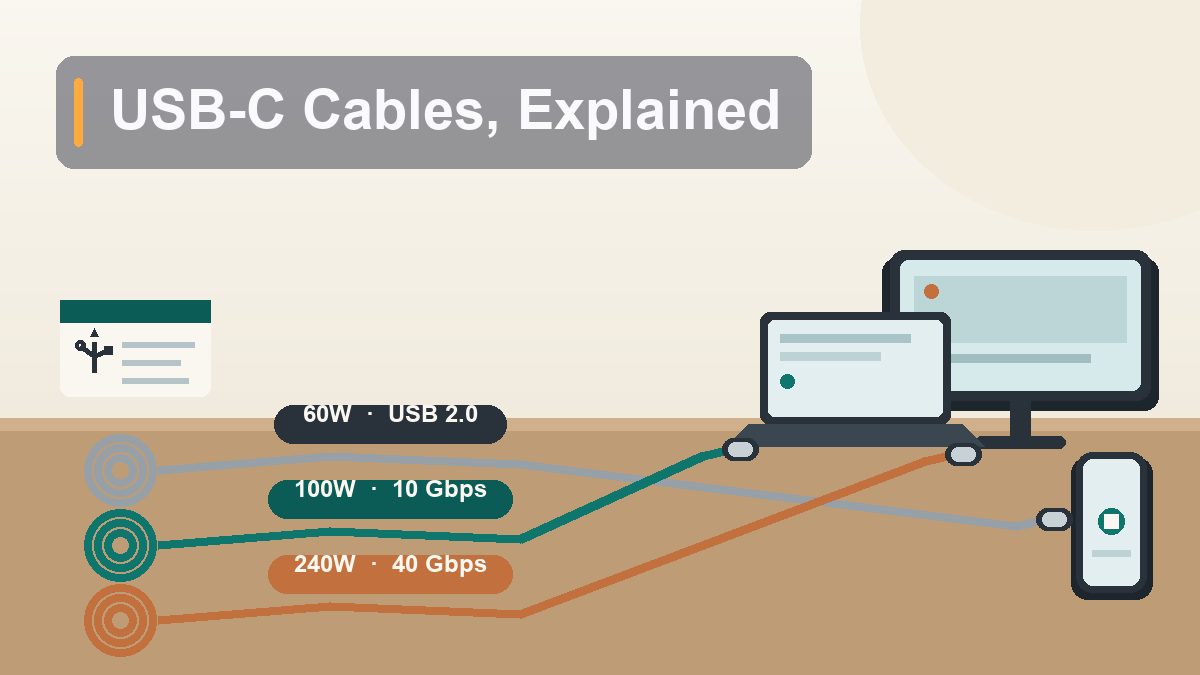
Not All USB-C Cables Are the Same — Here’s How to Choose
Every USB-C cable looks identical: same oval plug, same reversible fit, same smug little click when it seats. But inside that identical shape, one cable trickles power at phone speed while another charges a laptop, and one crawls data at 1999 rates while another drives two 4K monitors. Here’s how to tell them apart — and which one you actually need.
There’s a drawer in almost every American home that tells the whole story of USB-C. You know the drawer. It’s got six or seven cables with the same little oval plug, accumulated from phones, tablets, earbuds, a Kindle, a gas station at 11 p.m., and at least one that came free with something you no longer own. They all fit everything. And yet: one of them charges your laptop at full speed, one of them charges it so slowly the battery still drains while you work, one of them copies a photo library in four minutes while another takes an hour, and one of them — the free one — gets mysteriously warm doing either. The maddening thing is that none of this is visible. The connector is a shape, not a capability. USB-C is the name of the plug, full stop, and what flows through it depends entirely on what’s inside the cable and what the two devices on the ends agree to do. Once you understand that one idea, the whole confusing market snaps into focus — and choosing a cable becomes a two-minute job instead of a gamble.
The Connector Is Just a Shape
Why “it fits” tells you almost nothing
Start with the mental model that fixes most of the confusion. When the industry moved to USB-C, it standardized the connector — the physical oval plug with 24 pins, small enough for phones, reversible so there’s no wrong way up. That’s genuinely wonderful, and it’s why your laptop, phone, headphones, and game console can share a plug shape for the first time in history. The European Union liked the idea so much it now legally requires USB-C ports on most small electronics sold there, which pushed even the holdouts onto the standard.
But the standard deliberately says nothing about what travels through those 24 pins. Think of USB-C as a universal power outlet shape: the fact that a plug fits the socket doesn’t tell you whether the circuit behind it can run a phone charger or a clothes dryer. Two cables with identical plugs can differ enormously in three independent ways:
- Charging wattage. The same cable might top out at 60 watts, 100 watts, or 240 watts. Plug a 60-watt cable between a 96-watt MacBook charger and the laptop, and you get 60 watts — the cable is the bottleneck, silently.
- Data speed. The cheapest USB-C cables move data at USB 2.0 speeds — 480 megabits per second, the same rate as the beige cables from 2001. Good ones run at 5, 10, 20, or 40 gigabits per second. That’s a difference of up to 80x, hidden behind the same plug.
- Video and extras. Only some cables carry a video signal to a monitor, and only some support the fast lane (Thunderbolt) that docks, external drives, and high-end displays want.
Each of these is independent. A cable can be a charging champion and a data dud — in fact, that’s the single most common combination sold today, because it’s cheap to make. The cable that came with your phone almost certainly charges fine and transfers data at USB 2.0 speeds, which is why copying a big video to your computer over USB feels like dial-up while your phone charges happily. Nothing is broken. You’re just using a power cable to do a data cable’s job.
Charging: USB PD, Wattage Ratings, and the E-Marker Chip
The three numbers that matter: 60, 100, and 240
Modern USB charging runs on a standard called USB Power Delivery, or USB PD. Here’s the part that makes it feel like magic: the charger, the cable, and the device negotiate. When you plug in, they have a millisecond digital conversation — what voltages do you support, how much current can you carry, what does the battery want right now — and settle on the fastest safe option everyone agrees to. This is why one charger can fast-charge a laptop at 20 volts and then gently top off your earbuds an hour later without harming either. The device is always in control of how much power it takes; a bigger charger cannot force power into a small gadget.
The cable’s role in that negotiation is where the ratings come in. Cables are certified for how much current they can carry, and there are three tiers you’ll actually see:
- 60W cables (3 amps) are the baseline. Fine for phones, tablets, and many thin laptops that ship with 45–65W chargers. This is what most cheap cables are, whether they say so or not.
- 100W cables (5 amps) handle every mainstream laptop, including 16-inch MacBook Pros and big Windows machines. If you buy one good cable for a laptop bag, make it this tier or better.
- 240W cables are the newest tier, built for the extended power range of the latest USB PD spec. They’re for gaming laptops, mobile workstations, and anything with a hungry dedicated GPU. Overkill for a phone, but future-proof and usually only a few dollars more than 100W.
Now the clever bit: how does the charger know which tier the cable is? Any cable rated above 60W — or carrying high-speed data — contains a tiny chip molded into the plug called an e-marker. It announces the cable’s capabilities to whatever you plug in: “I can carry 5 amps, I’m rated for 40 gigabits, here’s my manufacturer ID.” If the charger reads the e-marker and sees 100W, it offers 100W. If there’s no e-marker, the standard says to assume the cable is a basic 60W one and play it safe. This is exactly why a mystery cable can throttle a big laptop: no chip, no announcement, no full-speed charging. The laptop doesn’t warn you, either — it just charges slower, sometimes so slowly that under heavy load the battery percentage drops while plugged in.
Data: The Speed Ladder Nobody Reads
From 480 Mbps to 40 Gbps behind the same plug
Data is where the naming gets genuinely ridiculous, so here’s the plain-English ladder. Every USB-C cable supports some data speed, and the tiers look like this:
- USB 2.0 — 480 Mbps. The default for charging cables. Fine for syncing photos overnight, painful for anything bigger. If the product page brags about charging and never mentions data, it’s this.
- 5 Gbps (USB 3.2 Gen 1, formerly USB 3.0). Moves a 50 GB photo library in about a minute and a half at real-world speeds. The minimum worth paying for if you ever transfer files.
- 10 Gbps (USB 3.2 Gen 2). The sweet spot for external SSDs — most portable drives top out here anyway.
- 20 Gbps (USB 3.2 Gen 2×2 or USB4 20G). Less common, mostly relevant to fast external storage.
- 40 Gbps (USB4 or Thunderbolt). The top lane. Drives high-resolution monitors, docks, and the fastest external drives.
Two extra wrinkles sit on top of the ladder. First, USB4 isn’t just a speed — it’s a newer rulebook that guarantees certain features, and it comes in 20 and 40 Gbps flavors. Second, Thunderbolt is Intel’s premium standard that rides on the USB-C connector: Thunderbolt 3 and 4 both run at 40 Gbps and guarantee video and docking support; Thunderbolt 5, showing up on newer laptops, doubles that to 80 Gbps (with a 120 Gbps boost mode for displays). A Thunderbolt cable does everything a USB4 cable does and more — but only if both ends speak Thunderbolt. Plug a Thunderbolt cable into a plain USB-C phone and it politely behaves like an ordinary cable.
The practical takeaway: for data, the cable has to be rated at or above the speed of both devices and the thing you’re trying to do. A 10 Gbps SSD on a 10 Gbps port with a USB 2.0 cable in between is a 480 Mbps SSD. The weakest link sets the speed, and the cable is very often the weakest link.
Reading the Tiny Logos
The trident, the numbers, and the lightning bolt
Cable makers do try to tell you what you’re holding — they just do it in symbols small enough to require good lighting and mild squinting. Look at the plug housings, the cable jacket near the ends, and the packaging:
- The USB “trident” alone — the classic fork-like symbol with an arrow, circle, and square — with nothing else means plain USB, and on a USB-C cable that almost always means USB 2.0 speeds.
- The trident with “SS” and a number (SuperSpeed) tells you the data tier: SS with 5, 10, or 20 means 5, 10, or 20 Gbps. Some newer logos skip “SS” and show the trident with “20” or “40” directly.
- A lightning bolt is Thunderbolt. If there’s a small number next to it — 3, 4, or 5 — that’s the generation. Thunderbolt 4 cables are a safe premium default: 40 Gbps, 100W charging, video, docks, everything.
- A battery or wattage print — “60W,” “100W,” “240W,” or “3A”/”5A” — states the charging tier. Five amps means 100W-class and guarantees an e-marker chip.
- “Charging only” printed on the jacket means exactly that: USB 2.0 data, if any data at all. Respect the label.
When a cable has no markings at all — which describes most of the drawer — treat it as 60W charging and USB 2.0 data until proven otherwise, and verify by testing: time a big file copy, or watch whether a laptop reports full-speed charging. On a Mac, Option-click the battery menu or check System Information under Power; on Windows, many laptops show negotiated wattage in the manufacturer’s utility or apps like HWiNFO.
Matching the Cable to the Job
Phones, laptops, monitors, and drives each want something different
Here’s where it all cashes out. Different devices stress different cable capabilities, so the “best cable” depends entirely on the job:
Phones and earbuds. Almost any decent cable works, because phones charge at modest wattages (most top out between 20W and 45W) and rarely move huge data. A 60W cable is plenty. The one upgrade worth making: if you shoot a lot of 4K video on a recent iPhone Pro or flagship Android and offload it by cable, get a 10 Gbps cable — the phones’ ports support it, and it turns a 40-minute transfer into a 4-minute one.
Laptops. Match the cable to your charger’s wattage, which is printed in tiny text on the charger brick. A 65W laptop charger wants at least a 100W-rated cable (60W cables cap out below it); gaming laptops with 140W+ bricks need a 240W cable to run at full tilt. Since laptops also connect to docks and monitors, a 100W/10Gbps cable is the minimum sane choice, and a 100W/40Gbps (USB4 or Thunderbolt 4) cable covers everything.
Monitors and docks. This is where generic cables fail most visibly. Running a display over USB-C requires the cable to carry a video signal — either DisplayPort Alt Mode or Thunderbolt — and the bargain-bin cables simply don’t have the wiring. Symptoms of the wrong cable: a monitor that flickers, drops to a low resolution or refresh rate, or doesn’t light up at all while the laptop still charges through the same cable. For a single 4K display at 60 Hz you want at least a full-featured 10 Gbps USB-C cable; for dual displays, high refresh rates, or a docking station, go straight to Thunderbolt 4 or USB4 40 Gbps and stop thinking about it.
External SSDs. Match the cable to the drive’s rated speed. A drive labeled 1,050 MB/s needs a 10 Gbps cable; a USB4 or Thunderbolt drive needs a 40 Gbps one. The cable that came in the box is already correct — the classic mistake is losing it and grabbing a charging cable, then wondering why the “fast” drive benchmarks at 40 MB/s.
| Job | Charging rating needed | Data rating needed | Cable to buy |
|---|---|---|---|
| Phone / earbuds charging | 60W is plenty | USB 2.0 is fine | Any decent 60W cable (braided, ~$10) |
| Phone photo/video offload | 60W | 10 Gbps | 60W / 10 Gbps USB-C cable |
| Thin laptop (45–100W brick) | 100W (5A, e-marked) | USB 2.0 if charge-only | 100W charging cable; add 10 Gbps if it also moves files |
| Gaming laptop / workstation (140W+) | 240W (USB PD 3.1) | Per your needs | 240W cable — check the listing explicitly states 240W |
| Single 4K monitor | 100W if it charges the laptop too | Full-featured USB-C (DP Alt Mode) | 100W / 10 Gbps “full-featured” cable, or USB4 |
| Dual monitors / docking station | 100W | 40 Gbps + video | Thunderbolt 4 or USB4 40 Gbps cable |
| Fast external SSD (1,000+ MB/s) | 60W irrelevant | 10 or 40 Gbps, match the drive | The cable that came with the drive, or an equivalent rated one |
| One cable to rule the drawer | 240W | 40 Gbps | A 240W USB4 (or Thunderbolt 4) cable — does everything above |
Why the Gas-Station Cable Underperforms
It’s not a conspiracy — it’s copper, chips, and honesty
The $7 cable hanging by the register isn’t a scam, exactly, but it’s built to a price, and the corners it cuts map neatly onto everything above. Thin power wires mean more electrical resistance, which means voltage sag: the phone negotiates a healthy charging rate, the cable warms up dropping some of that power as heat, and charging slows to a crawl on long or coiled runs. Data lines, if they’re wired at all beyond USB 2.0, skimp on shielding and the precise twisted-pair construction high speeds require — so even when a cheap cable claims 10 Gbps, real transfers stutter or fall back to slower modes. There’s no e-marker, so laptops cap it at 60W. The plug housings are loose-tolerance stampings that wiggle in the port and wear out in months. And the safety certifications a proper cable carries — from USB-IF, the standards body — cost money that a $7 cable’s margins don’t include.
The fix is not to spend a fortune. The price curve for cables is extremely flat at the good end: a properly rated 100W/10Gbps braided cable from a reputable brand runs about $12–18, and a 240W USB4 cable that can literally do every job in this article runs $20–35. The difference between junk and excellent is the price of two coffees, once, for a cable that outlasts three phones. What you’re paying for is honest labeling — a stated wattage, a stated data rate, and a brand that exists next year if the rating turns out to be fiction.
Cable Length, Braiding, and Other Details That Actually Matter
A few smaller rules worth knowing
Length quietly caps speed. Physics doesn’t care about marketing: passive 40 Gbps Thunderbolt and USB4 cables max out around 0.8 meters before signal integrity collapses, and even 10 Gbps gets dicey past about a meter on cheap construction. If you need a long cable, buy for the job honestly — a 2-meter cable is realistically a charging-and-USB-2.0 or charging-and-5Gbps product, whatever the listing implies. Long true-40Gbps cables exist but use active electronics and cost real money.
Braiding is durability, not performance. A nylon-braided jacket doesn’t change the electronics inside, but it does survive the bag-and-desk life dramatically better than bare rubber, especially at the strain-relief where cables actually die. Worth the small premium on your daily-driver cable.
Right-angle and short cables have their place. A 0.3-meter cable belongs in the travel kit paired with a power bank — less resistance, less tangle. Right-angle plugs are kind to laptop ports on crowded desks and to phones held in hand while charging.
Label your good ones. Since the whole problem is that cables look identical, defeat it directly: a tiny piece of colored tape or a paint-pen dot on your two good cables — the 240W one and the 40 Gbps one — means you never again discover mid-transfer that you grabbed the earbud cable.
A Simple Buying and Sorting Strategy
Fix the drawer in one afternoon
Here’s the whole system. First, buy two good cables: one 240W USB4 cable (or Thunderbolt 4 if you use docks and monitors) as the universal do-everything cable, and one 100W/10Gbps braided cable as the daily driver. Total cost: roughly what one emergency gas-station purchase plus regret already cost you. Second, triage the drawer: plug each mystery cable into your laptop with a big file copy and a wattage check, and physically label the keepers; recycle or donate the rest — electronics retailers across the US and Canada accept cables for e-waste. Third, match cables to locations: the do-everything cable lives with the laptop, the daily driver lives at the desk, and the labeled 60W survivors live with the phone and in the car. Once every cable has a job and a known rating, the drawer stops being a lottery. And from now on, when you buy a cable, read one line of the listing — wattage, gigabits — before you read the reviews. The shape was settled years ago. It’s what’s inside that you get to choose.
This article is educational and reflects the USB-C, USB PD, USB4, and Thunderbolt specifications as of August 2026. Official references: the USB Implementers Forum (USB-C, USB PD, and USB4 specifications and certified-product database) and Intel’s Thunderbolt pages. Prices mentioned are typical US street prices and fluctuate. No affiliate links or sponsored content.